
I’m pleased to announce WP User Manager 2.10 🎉
This release lets you rename any user role, gives you email tags for building your own styled buttons, keeps your login and account pages out of search results, and makes member email addresses private by default on new sites. If you run a membership site or a member directory, there’s something here for you.
Let’s get into it.
Rename Any Role
WordPress gives you Subscriber, Contributor and the rest, and those names show up wherever a member’s role does. Plenty of you asked to call them something that fits your site, such as Member instead of Subscriber, without having to create a new role and move everyone across.
You can now rename a role from Users > Roles. Hover over the role and click Rename, type the new name and save:
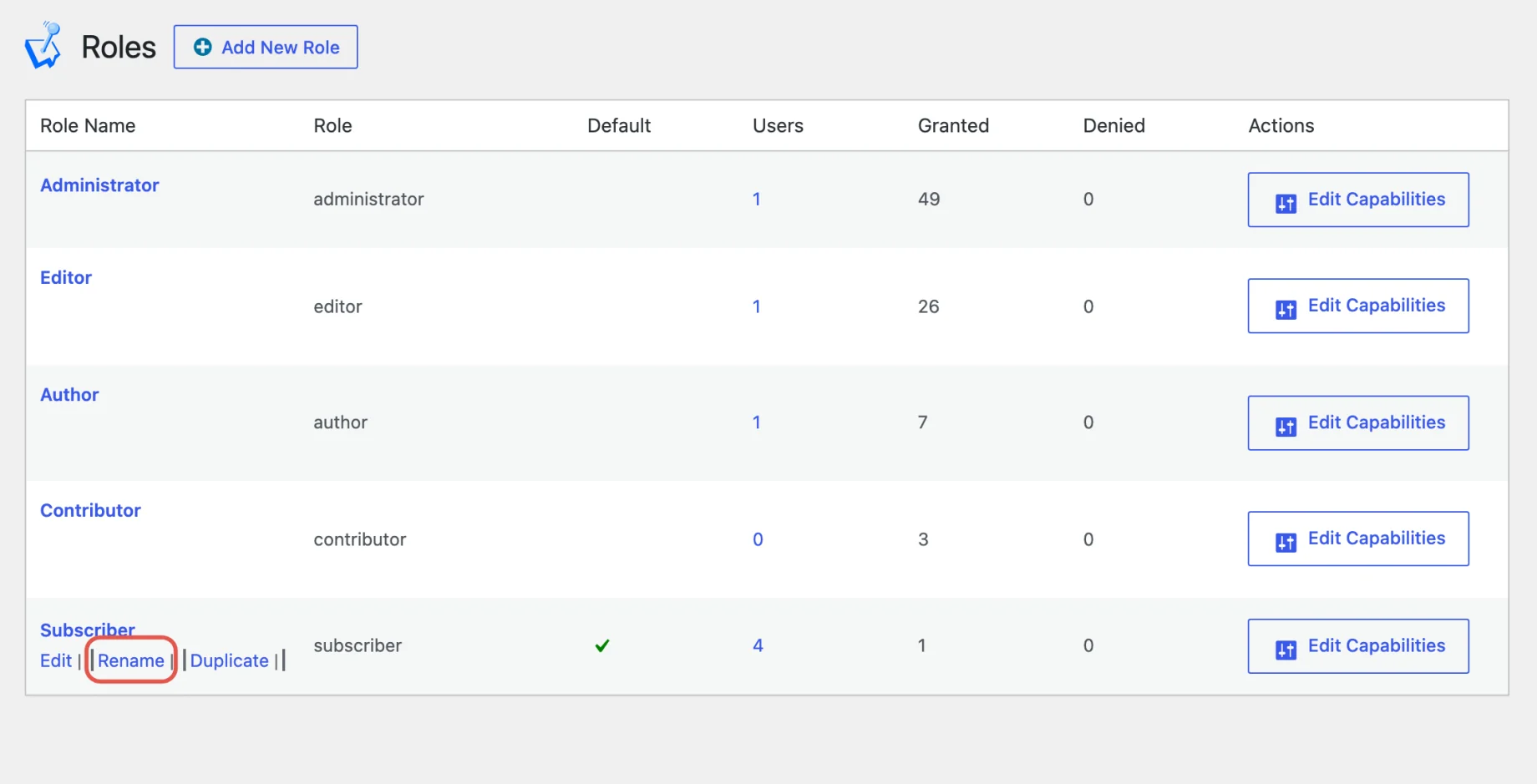
Only the name changes. The role keeps its slug, its capabilities and all of its users, so nothing that checks for the role breaks. It works for the built-in WordPress roles as well as your own, and two roles can’t share a name.
The Roles screen is part of the free plugin and is on by default. If you don’t see it, turn on Roles Editor under Users > Settings > General > Misc Settings. See Editing WordPress user roles and capabilities for the rest of what the Roles screen can do.
Email Tags for Your Own Buttons
The password reset and welcome emails link to your site with the {recovery_url} and {login_page_url} tags. Until now those tags printed a complete link, so there was no way to use them in a button of your own: the link ended up inside your button’s link and broke it.
In 2.10 there are two tags for each:
{recovery_url}and{login_page_url}now give just the address, so you can put them in your own link or button, for example<a href="{recovery_url}" style="...">Reset your password</a>- the new
{recovery_link}and{login_page_link}give a ready-made clickable link, like the old tags did
You don’t need to change anything: when you update, any email that uses the old tags as text is switched to the new link tags, so your emails keep sending clickable links. Edit your emails under Users > Emails, then Customize:
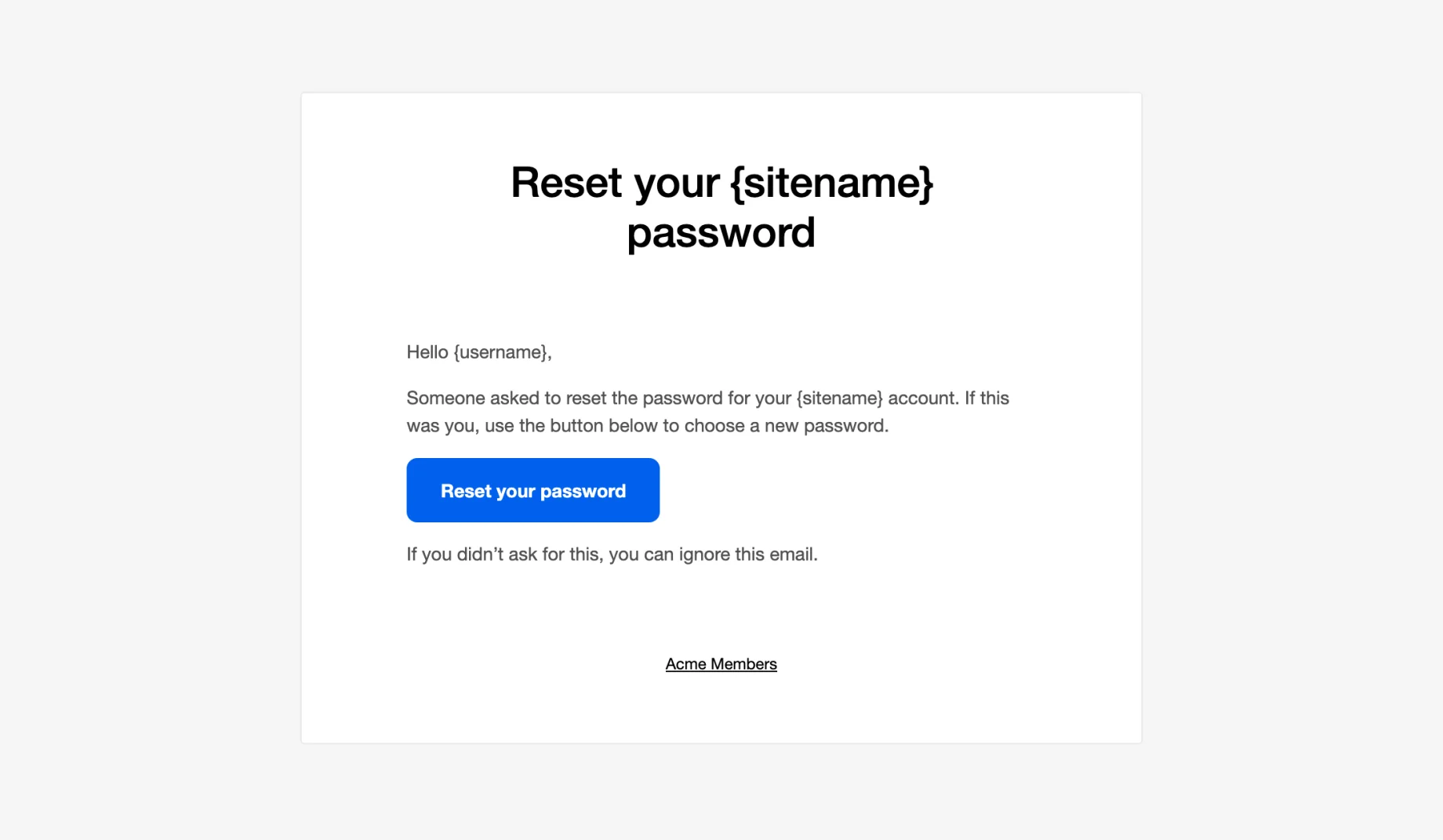
This is in the free plugin. Customizing the email design covers the rest of the email editor.
Login and Account Pages Kept Out of Search
Your login, registration, password reset and account pages are useful to your members, but nobody needs to find them on Google. In search results they push out the pages you actually want people to land on.
WP User Manager now tells search engines not to index those pages, and leaves them out of your sitemap. It works with the WordPress sitemap and with Yoast SEO and Rank Math. Member profiles that visitors can view stay indexable; profiles that only logged in members can see are kept out too. There’s nothing to set up.
We also fixed a small annoyance on the login page: if you’re already logged in and follow a login link that includes a redirect_to address, you’re now sent straight there instead of seeing the login form. See Understanding how login redirect works.
Member Emails Private by Default
The Email field used to be visible on public profiles on a new install, so anyone who could view profiles could see members’ email addresses. On new sites the field is now hidden on profiles. Members can still change their email on the account page.
If your site is already running, nothing changes: some sites show emails on purpose. To check yours, go to Users > Custom Fields. In the Privacy column, a tick means the field shows on public profiles and a crossed-out eye means it’s hidden. To change it, edit the Email field and set Profile visibility to Hidden on its Privacy tab:
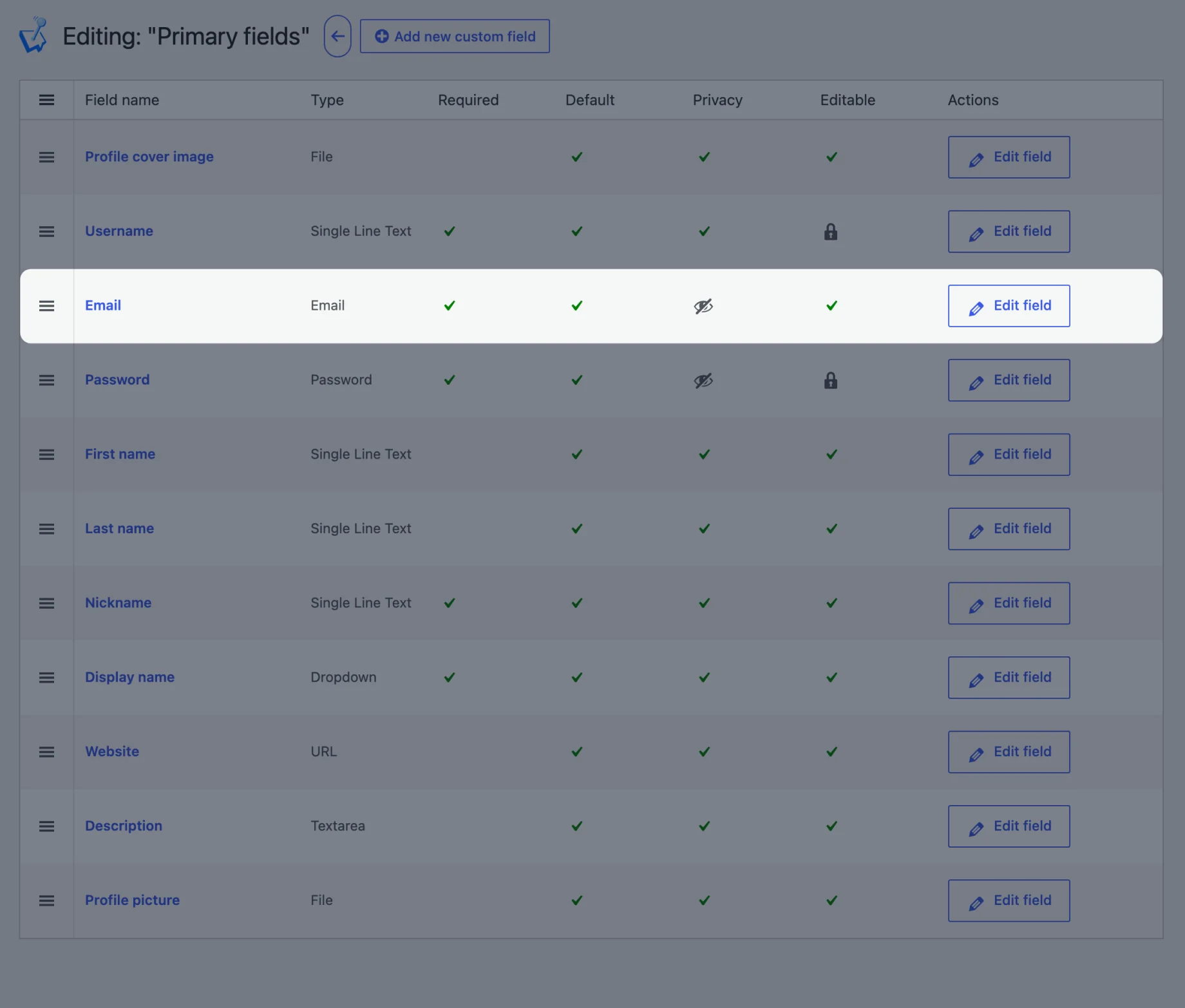
More in How to hide fields on the profile page.
And More
This release includes security improvements to the Stripe integration, so please update. It also fixes how Stripe subscriptions changed in the Stripe customer portal are counted, stops radio buttons choosing the first answer for your members, removes a Placeholder setting from fields that never showed it, and warns admins when the server is missing a PHP extension the plugin needs. See the full changelog for everything in 2.10.
Next Up
We’re refreshing a lot of the addons at the moment, with fixes, new tests and updates for the latest WordPress, so look out for updates on your Plugins screen. We’re also working on making WP User Manager ready for AI, so you can ask an AI assistant to set up your registration forms, profiles and member directory for you.
What do you want to see in WP User Manager next? Let us know in the comments.
Get WP User Manager 2.10
Update from the Plugins screen in your dashboard. If you’re new to WP User Manager, get the free plugin from WordPress.org.

Get Started with the Best WordPress Membership Plugin Today
Connect, Manage and Build your Membership Site