

I’m pleased to announce Mailchimp 2.1 for WP User Manager 🎉
This release lets you manage a member’s Mailchimp subscriptions from their profile in the dashboard, adds a WP-CLI command to sync your users, and tells you when Mailchimp turns a request down, so you’re no longer left guessing why someone didn’t end up on your list. If you use Mailchimp to keep in touch with your members, this one’s for you.
Let’s get into it.
Manage subscriptions from a user’s profile
Until now, the only place a member’s subscriptions could change was their own account page, or registration. If someone emailed asking to be added to your newsletter, you had to do it in Mailchimp yourself.
Now, when you edit a user under Users > All Users, there’s a Mailchimp section showing which of your enabled lists they’re subscribed to:

The ticks come straight from Mailchimp, so they show where the member really stands, including anyone who unsubscribed from an email. Tick a list and save to subscribe them (on a double opt-in list they’ll get Mailchimp’s confirmation email first), or untick it to unsubscribe them. Saving the profile also sends their latest name and any custom fields you’ve mapped to merge tags to the lists they’re on. The section shows for anyone who can edit users.
Sync your users from the command line
The addon has always had an Import to Mailchimp link on the Users screen, for adding existing users to a list. On large sites it could time out, because it tried to send everyone in one go.
The import now works through your users ten at a time and shows its progress as it goes, so it finishes however many members you have. If you’d rather run it from the command line, or on a schedule, there’s a new WP-CLI command:
wp wpum mailchimp-sync --list=<list-id> --role=subscriber
Leave out --role to sync every user, and add --dry-run to see how many users it would sync before you run it for real.
Both the import and the command now respect unsubscribes. Anyone already on the list gets their name and merge fields updated, but someone who unsubscribed stays unsubscribed. See Sync all of your users for more on the import.
See when Mailchimp turns a request down
When Mailchimp rejected a request, for example because your audience requires a field that wasn’t sent, the addon failed quietly. The member wasn’t subscribed, and nothing told you why.
Now, failed requests are listed at the top of Users > Mailchimp, with Mailchimp’s reason, down to the field it wanted:

Fix the cause, then use Clear this list to start afresh.
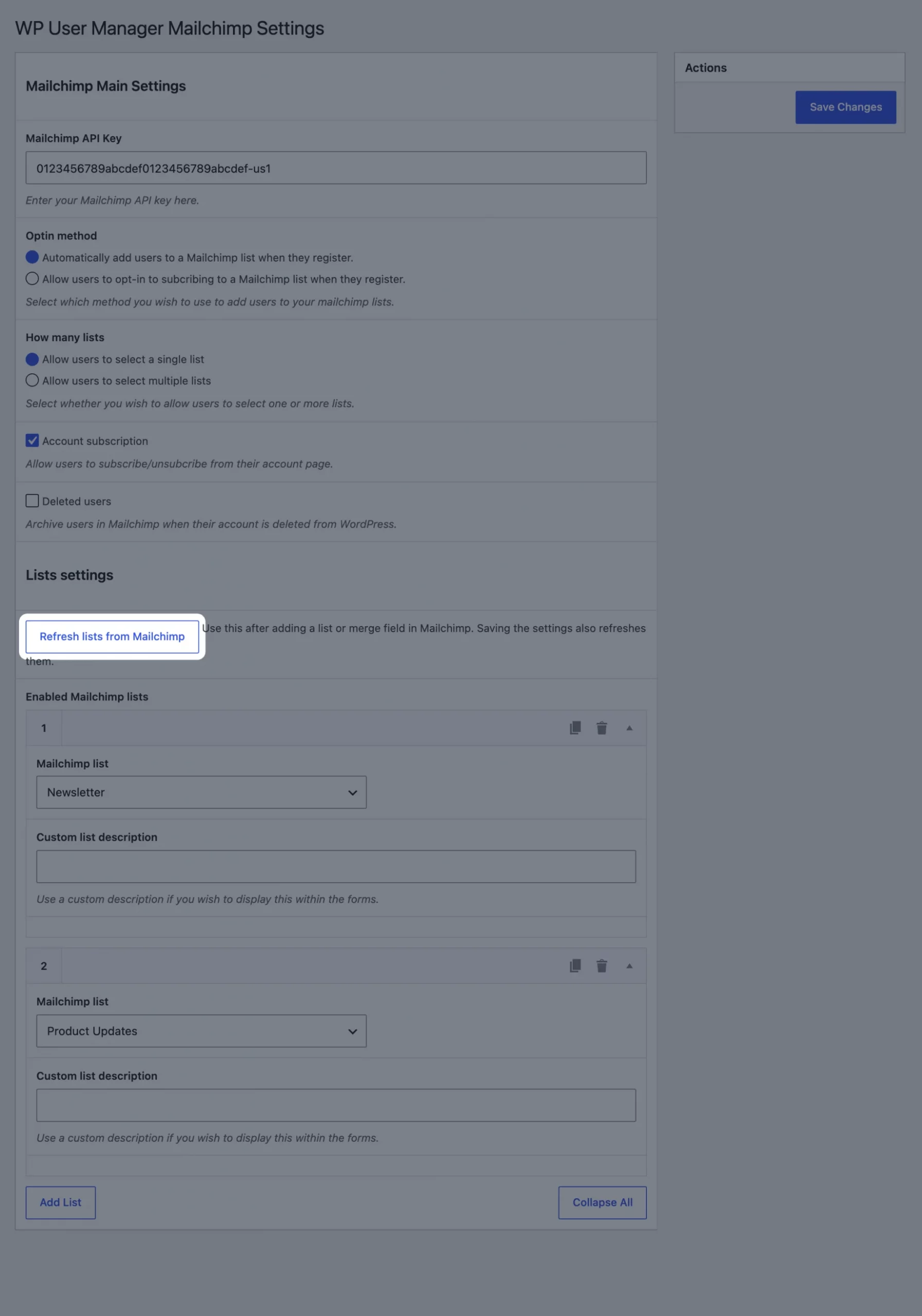
We’ve also added a Refresh lists from Mailchimp button under Lists settings. Use it after you add an audience or a merge field in Mailchimp, and it shows up in the addon straight away:
And more
Multi-select custom fields now reach Mailchimp, as a comma-separated list. Changing your email address on the account page no longer re-subscribes you to lists you’d left, and a name changed at the same time now gets through. The Email subscriptions tab shows each list’s real status and lets members who unsubscribed sign up again. There’s also a new Deleted users setting, off by default, which archives people in Mailchimp when you delete their WordPress account.
Behind the scenes, the addon now has an automated test suite covering every feature. See the full changelog for everything in 2.1.
Next up
We’d love to hear what you want from Mailchimp next. Mailchimp tags? Interest groups at registration? Something else? Let us know in the comments.
Get Mailchimp 2.1
If you already have the addon, update it from the Plugins screen in your dashboard. New to it? Start with installing the Mailchimp addon and subscribing users on registration.
Mailchimp is a paid addon: get it on its own from the Mailchimp addon page, or as part of the Agency, Pro and Plus bundles on the pricing page. It works with the free WP User Manager plugin.

Get Started with the Best WordPress Membership Plugin Today
Connect, Manage and Build your Membership Site