

To take recurring payments in WordPress with Stripe, you need two things: Stripe to store the customer’s card and charge it on a schedule, and a WordPress plugin that starts the subscription and keeps your site in step with it. Which plugin depends on what people are paying for, whether that’s access to a membership site, products from a store, software licenses or a simple monthly fee. This guide explains how Stripe subscriptions work, which plugin fits which job, and then sets up recurring membership payments with our free WP User Manager plugin.
How recurring payments work with Stripe
Stripe does the billing. Your WordPress plugin connects it to your site.
- Products and prices live in Stripe. A product is what you sell (“Pro Membership”); a recurring price says how much and how often ($19 a month, $190 a year). One product can have several prices.
- The first payment starts a subscription. The customer pays once, usually on Stripe’s own checkout page, and Stripe saves the card and charges it again each period.
- Webhooks keep your site up to date. When a renewal succeeds, a payment fails or someone cancels, Stripe sends a message (a webhook) to your site. Without it, WordPress never hears that a subscription ended.
- Customers manage it themselves. Stripe’s customer portal lets people update their card, switch plans and cancel without contacting you.
- Failed payments are retried. Stripe retries a failed renewal on the schedule in your Stripe settings before cancelling, and handles extra card checks such as 3D Secure.
Which plugin fits what you’re selling
| You’re selling | Plugin | Recurring payments |
|---|---|---|
| Access to a membership site or community | WP User Manager | Free with Stripe; the Stripe Pro addon removes the 2% fee |
| Physical or digital products in a store | WooCommerce with WooCommerce Subscriptions | Paid extension; Stripe through WooCommerce’s Stripe gateway |
| Downloads and software licenses | Easy Digital Downloads with Recurring Payments | Paid; Stripe and PayPal |
| A simple payment form with no user accounts | WP Simple Pay | Personal plan, $99 a year |
Memberships: WP User Manager
If people pay for access, to members-only content, a community or a directory, you need user accounts as well as payments. WP User Manager charges for registration with Stripe in the free plugin: members choose a plan on the registration form, pay on Stripe’s checkout page, and get an account. When their subscription ends, they lose access automatically. The free plugin connects through Stripe Connect, which adds a 2% fee per transaction on top of Stripe’s own fees; the Stripe Pro addon uses your own Stripe keys and removes it. The setup is below.
Store products: WooCommerce Subscriptions
To sell subscription boxes, services or any WooCommerce product on a schedule, add WooCommerce Subscriptions, a paid extension from the WooCommerce team. It charges weekly, monthly or yearly through more than 25 payment gateways, including Stripe. Our guide to WooCommerce membership plugins covers combining it with memberships.
Downloads and licenses: Easy Digital Downloads
Easy Digital Downloads sells digital products, and its Recurring Payments extension renews them with Stripe or PayPal. It’s the usual choice for software sold with yearly license renewals.
A simple subscription form: WP Simple Pay
WP Simple Pay adds Stripe payment forms to any page without a store or user accounts, which suits a monthly fee for a service or club dues. Subscriptions need its paid Personal plan or higher, $99 a year.
How to set up recurring membership payments with WP User Manager
Here’s the short version. Our guide to building a membership website walks through every step with screenshots, including members-only content and what happens when someone cancels.
- Install WP User Manager and go to Users > Settings > Stripe. Set Gateway Mode to test, then click Connect to Stripe.
- Set up the webhook. Add your site’s webhook URL in Stripe and paste the signing secret into WP User Manager, so renewals, failed payments and cancellations reach your site. See setting up the Stripe webhook.
- Create your plans in Stripe. In your Stripe dashboard, add a product for each membership level with a recurring price, monthly or yearly. Back in WordPress, click Fetch Stripe Products.
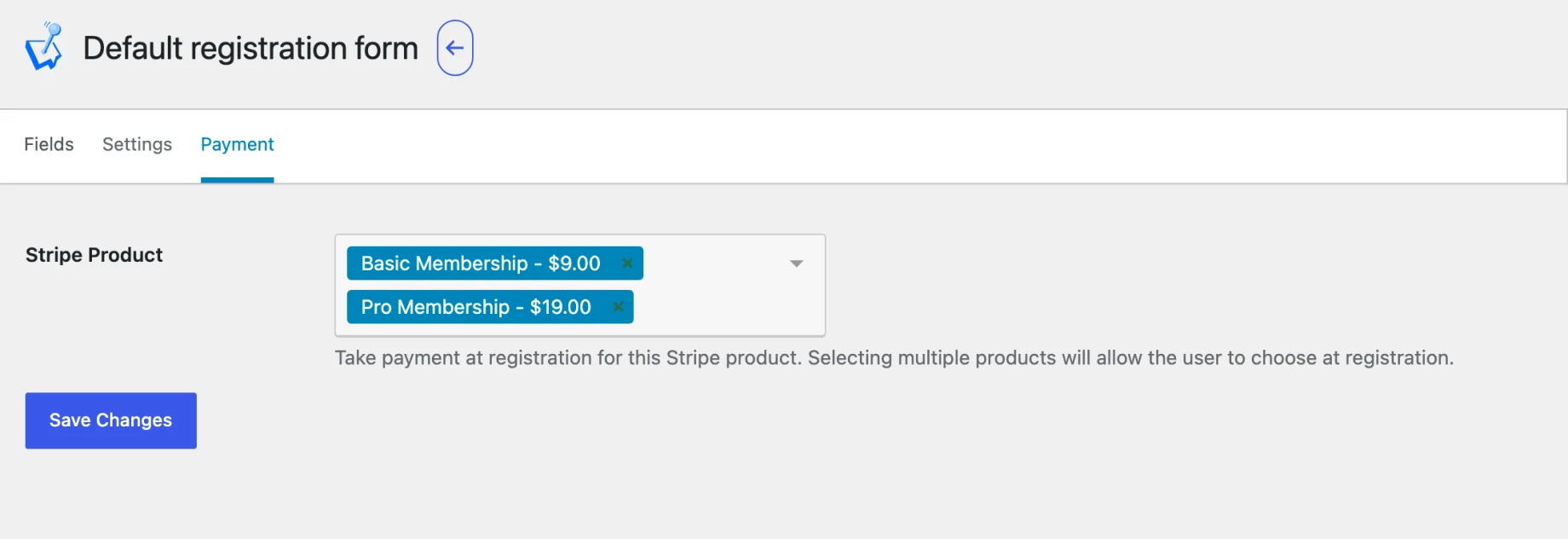
- Add a plan to your registration form. In Users > Registration Forms, edit your form and open the Payment tab. Choose one or more plans under Stripe Product: with several, people pick one as they register. See collecting payment on registration.
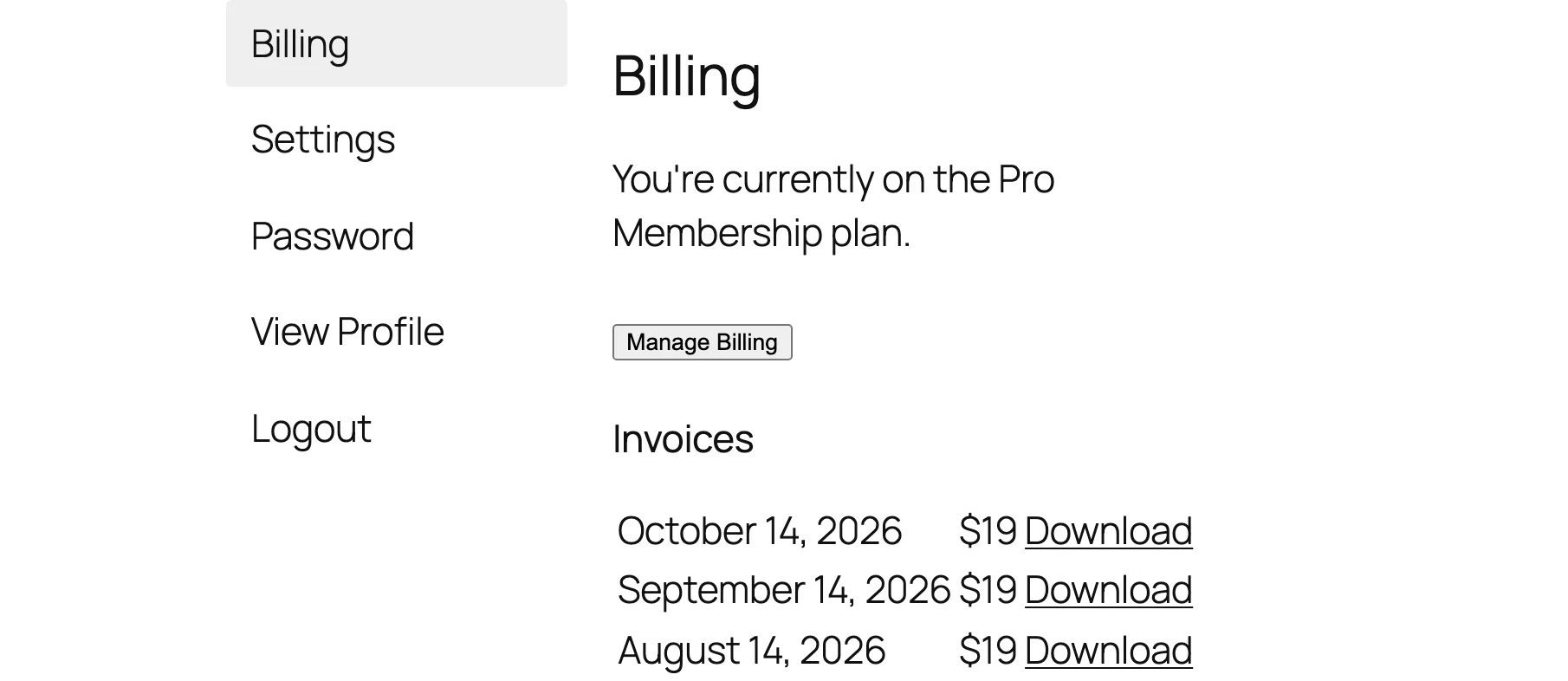
- Let members manage their billing. Members who pay get a Billing tab on their account page with their plan, their invoices and a Manage Billing button that opens Stripe’s customer portal. To let them switch plans there, list the prices under Eligible Products; see recurring subscriptions.
- Test, then go live. Register in a private window with one of Stripe’s test cards, check the payment, the Billing tab and a cancellation in the customer portal, then switch Gateway Mode to live.
Things to get right before you go live
- Don’t skip the webhook. It’s the most common reason a site keeps giving access after a subscription ends.
- Decide your retry and cancellation rules in Stripe. How many times to retry a failed card, and whether a cancellation takes effect at the end of the period, are Stripe settings.
- Know the fees. Stripe charges its own processing fee on every payment. Some plugins add a fee of their own on the free version, as WP User Manager does with Stripe Connect, so check before you choose.
- Taxes are separate. If you need to charge VAT or sales tax, look at Stripe Tax or your plugin’s tax options before you launch.
Start taking recurring payments
For a paid membership site, install the free WP User Manager plugin, connect Stripe in test mode and add your first plan to the registration form. When you want to remove the 2% fee or restrict content by plan, see pricing for the bundles with Stripe Pro and Content Restriction.

Get Started with the Best WordPress Membership Plugin Today
Connect, Manage and Build your Membership Site