
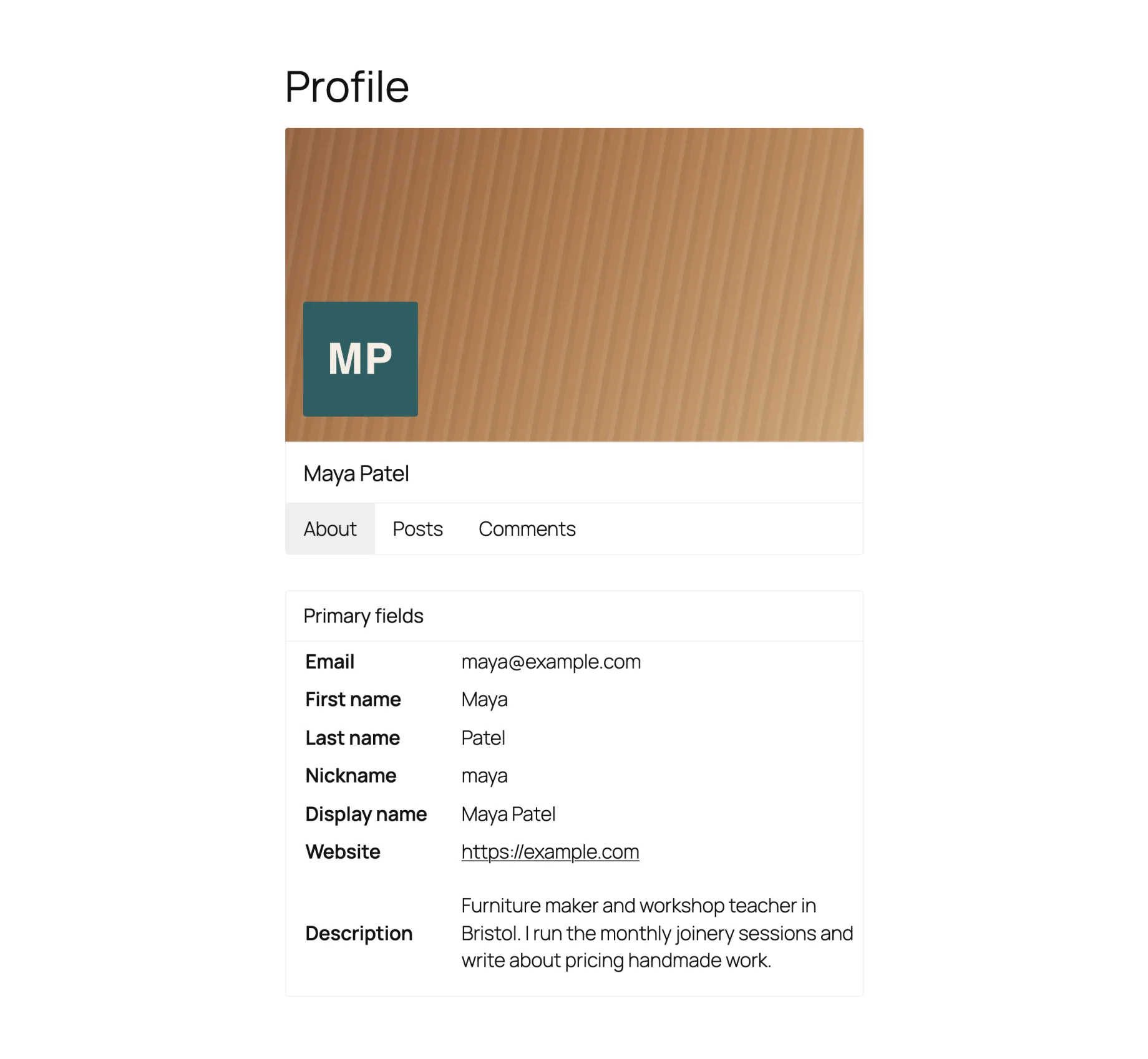
A custom user profile page gives each member a public page on your site, with their photo, the details they choose to share and what they’ve posted, instead of WordPress’s profile screen, which only lives in the dashboard. This guide builds one with the free WP User Manager plugin: setting up the page, choosing what profiles show, adding your own fields and tabs, controlling privacy, and changing the design.
WordPress profiles vs a custom profile page
Every WordPress user already has a profile, under Users > Profile in the dashboard. Only they and your admins can see it, and it looks like wp-admin. The only public page for a user is their author archive, which lists their posts and nothing else.
A custom profile page is the opposite: a page on the front of your site, at an address like example.com/profile/maya/, that anyone you choose can visit. Members edit it from an account page on your site, so they never need the dashboard.
Step 1: Install WP User Manager
Install and activate WP User Manager from wordpress.org. It creates a Profile page and an Account page for you. Each member’s profile appears on the Profile page at their own address, and they edit it from the Account page.
Profiles need pretty permalinks, so check Settings > Permalinks isn’t set to “Plain”. On the same screen, User profiles permalink base chooses what goes at the end of the address: the user ID, the username or the nickname.
Step 2: Choose what profiles show
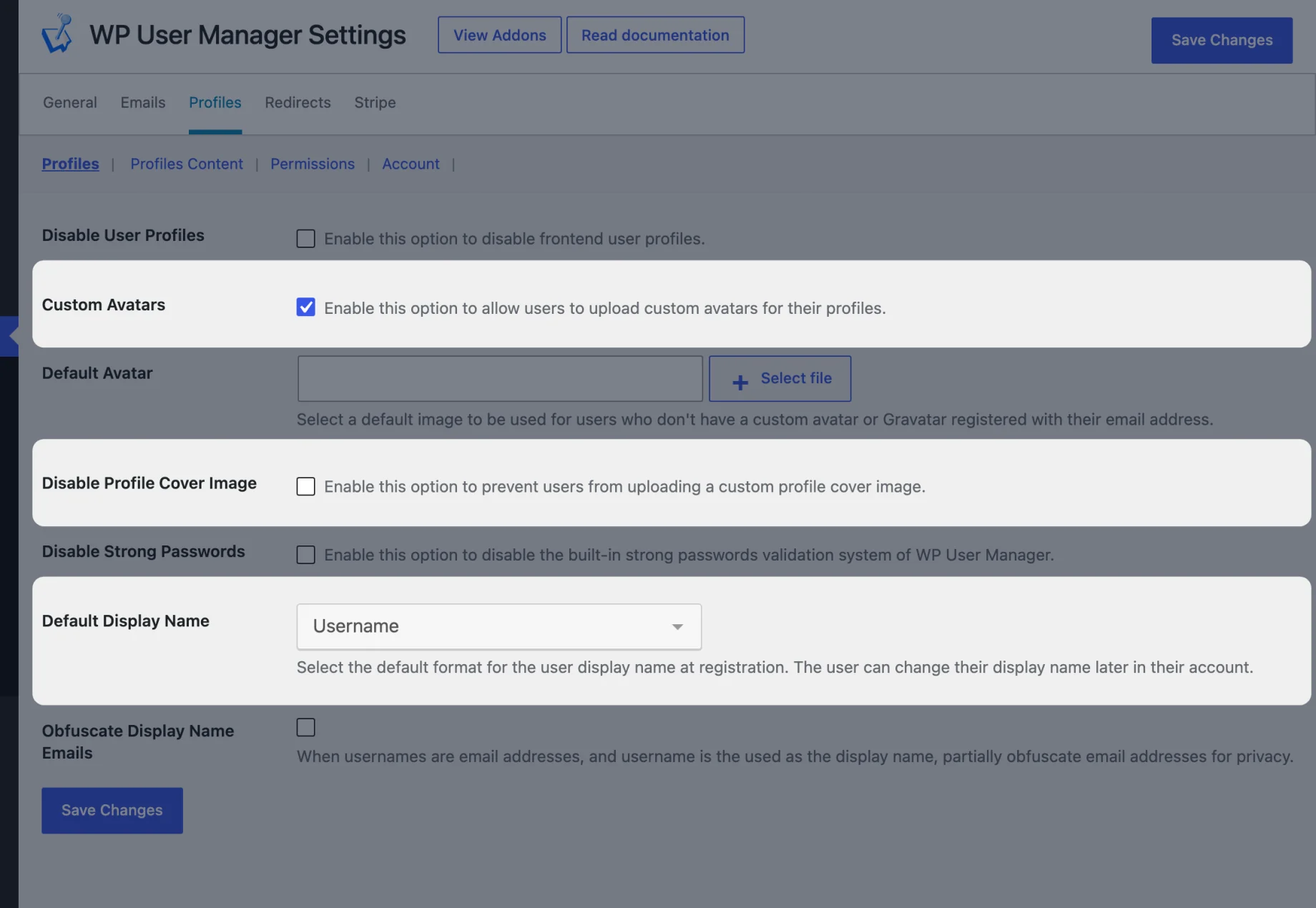
Go to Users > Settings > Profiles:
- Custom Avatars lets members upload their own photo instead of relying on Gravatar, and Default Avatar sets the image for everyone else.
- Disable Profile Cover Image turns off the banner at the top of profiles, if you don’t want it.
- Default Display Name chooses how names appear when someone registers.
Under Profiles Content, choose whether profiles get Posts and Comments tabs listing what the member has written. The About tab shows their details.
Our profiles settings help article covers every option.
Step 3: Decide who can see profiles
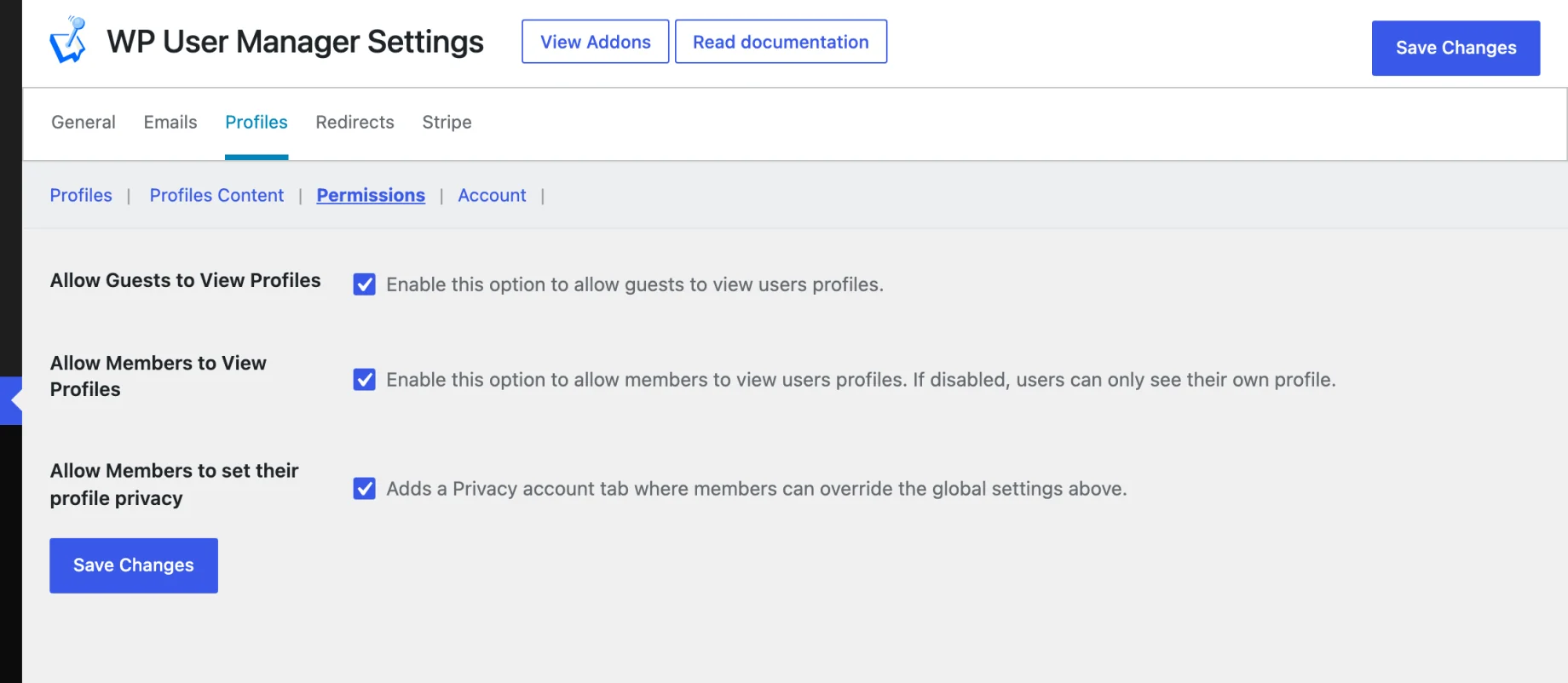
Under Profiles > Permissions:
- Allow Guests to View Profiles makes profiles public. Turn it off and only logged-in members can see them.
- Allow Members to View Profiles lets members see each other’s profiles. Turn it off and each member sees only their own.
- Allow Members to set their profile privacy gives members a Profile Privacy tab on their account page to hide their own profile.
Then check which details appear on the About tab. Each field has its own profile visibility, so you can keep something like the email address off public profiles: see how to hide fields on the profile page.
Step 4: Add your own fields
The About tab shows the standard fields: name, website and description. To show things specific to your site, such as a job title, location, skills or social links, add fields with the Custom Fields addon (paid) under Users > Custom Fields. Members fill them in on the registration form or their account page, and they appear on the About tab, grouped under the field group’s name.
Step 5: Let members edit their profile
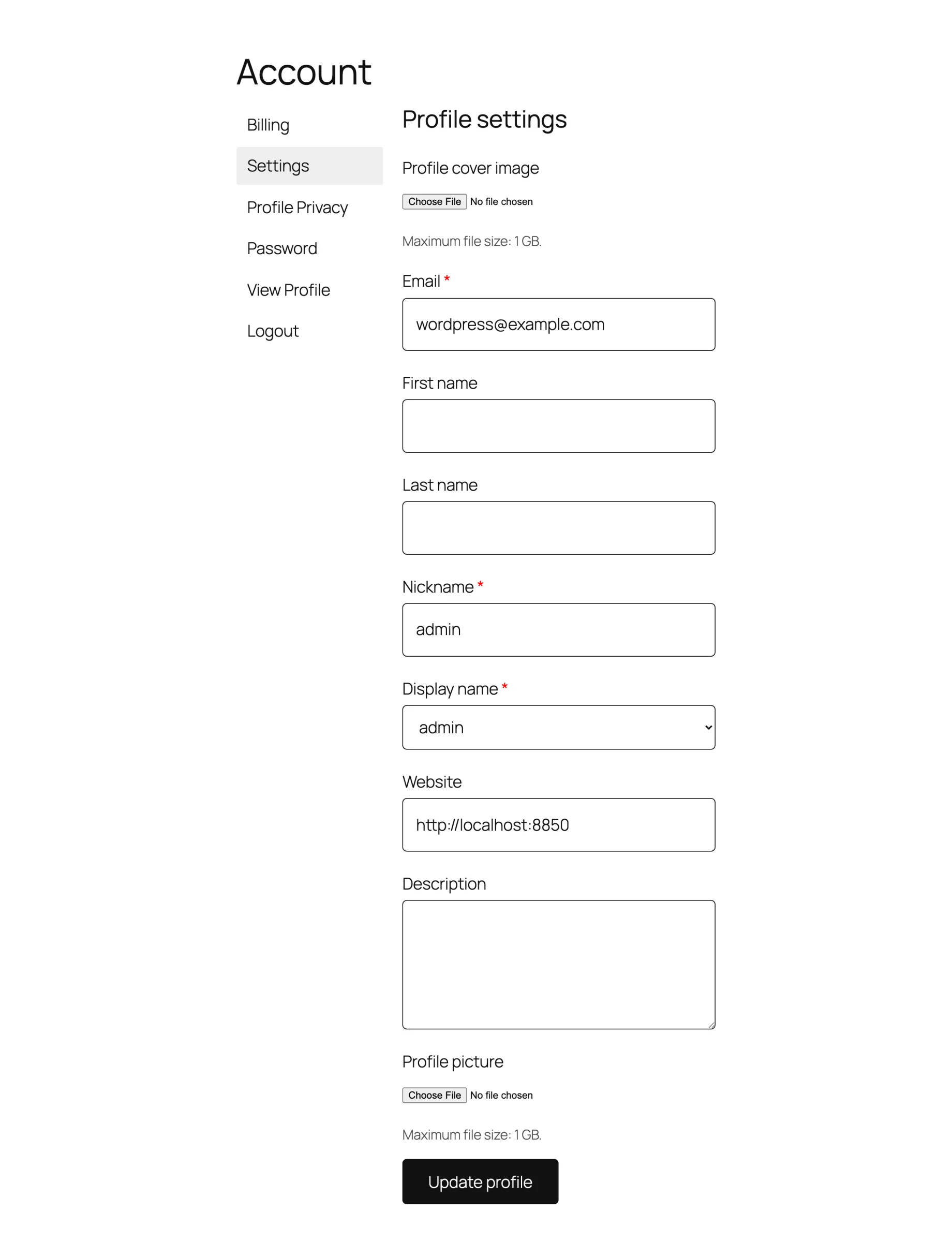
Members edit everything from the Account page: their name, email, bio, profile picture, cover image and any custom fields, plus their password and privacy. It’s on the front of your site, so you can keep members out of the dashboard entirely with Restrict Dashboard Access under Users > Settings > General > Misc Settings.
Step 6: Add your own profile tabs
Addons add their own tabs, such as a member’s groups with the Groups addon. To add a tab of your own, register it with the wpum_get_registered_profile_tabs filter and output its content on the matching wpum_profile_page_content_ action:
add_filter( 'wpum_get_registered_profile_tabs', function ( $tabs ) {
    $tabs['portfolio'] = array(
        'name'     => 'Portfolio',
        'priority' => 3,
    );
    return $tabs;
} );

add_action( 'wpum_profile_page_content_portfolio', function ( $data ) {
    echo '<p>Work by ' . esc_html( $data->user->display_name ) . '</p>';
} );
Put it in a code snippets plugin or your child theme. Our help articles on creating a new tab on the profile page and renaming profile tabs go further.
Step 7: Change the design
Profiles take their fonts and colors from your theme. To change the layout itself, copy the template you want from the plugin’s templates/profiles/ folder into a wpum/profiles/ folder in your child theme and edit the copy: WP User Manager uses your theme’s version instead. The header, cover, About tab, navigation and posts list are separate templates, so you only copy the part you’re changing. See customizing the user profiles.
Next steps
Once members have profiles, help them find each other with a member directory. To compare WP User Manager with other ways of adding profiles, see our roundup of WordPress user profile plugins.
To build yours, install the free WP User Manager plugin: profiles, avatars, privacy and the account page are all free.
Get Started with the Best WordPress Membership Plugin Today
Connect, Manage and Build your Membership Site