

I’m pleased to announce User Verification 2.2 for WP User Manager 🎉
Until now you had to choose how new members were checked: a link in an email, or your own approval. You asked for both, and 2.2 does exactly that. Manage Signups now tells you what each person is still waiting on, and there’s a new email tag for building your own verification button. This release also includes security fixes, so please update.
Let’s get into it.
Email Verification and Manual Approval Together
Email verification proves an address is real. Manual approval lets you decide who gets in. If you run a private community or a paid-for professional network, you often want both: no fake addresses, and a person checking every signup.
The Verification Method setting used to be a single choice. It’s now two checkboxes, so you can tick one, or both. Go to Users > Settings > User Verification:
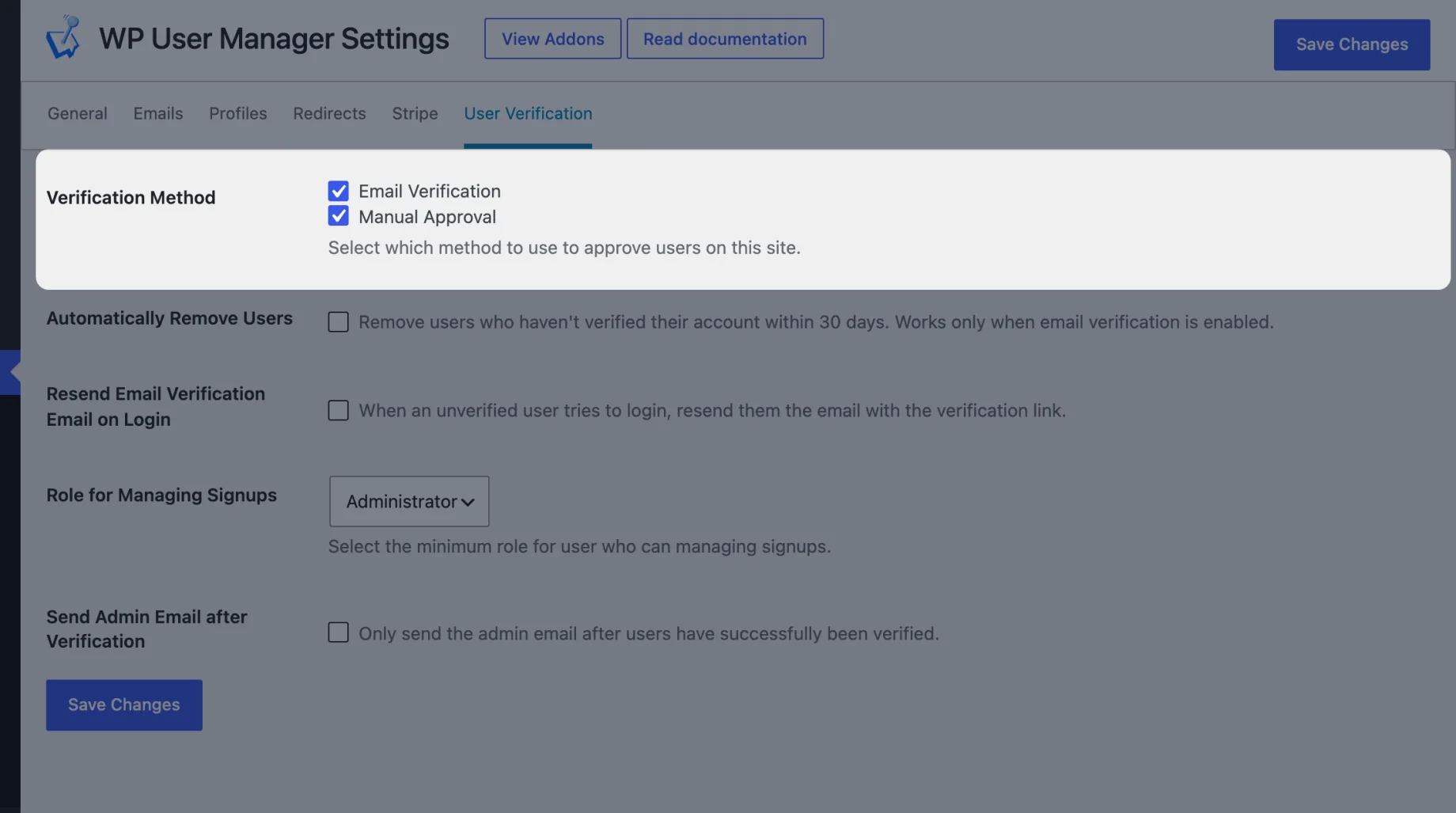
With both on, a new member is told to verify their email and wait for approval, and they can’t log in until they’ve done both, in either order. If they try early, the login form tells them what’s missing. Approving someone doesn’t verify their email for them, so you can be sure the address is real. If you’ve turned on Send Admin Email after Verification, that email now waits until both steps are done, so you get one email, not two.
Users who haven’t verified their email are the only ones Automatically Remove Users deletes. Someone who has verified and is waiting for you to approve them is never removed.
If you use one method today, nothing changes when you update. Your setting carries over, and anyone waiting for approval stays waiting.
See What Each Signup Is Waiting On
With two steps, you need to see who’s stuck where. When both methods are on, Users > Manage Signups has a new Status column showing Email not verified, Waiting for approval, or both:
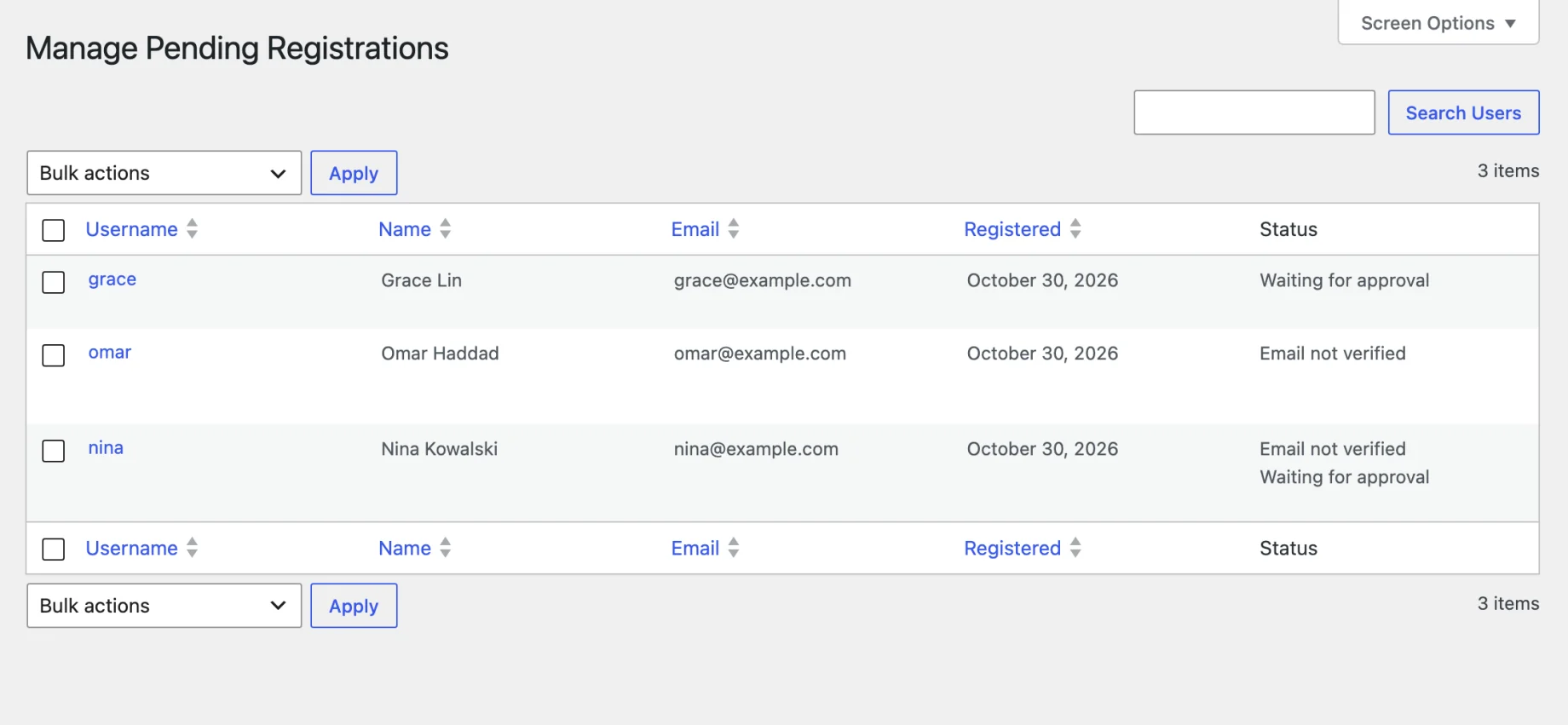
Approve now only appears for people actually waiting for approval. Someone you’ve approved who hasn’t clicked their link stays in the list so you can resend their email, or reject them. See Managing signups for how the screen works.
A Plain Verification Link for Your Emails
The {verification_link} email tag prints the whole link, which is fine in a plain email but gets in the way if you’ve designed your own. The new {verification_url} tag gives you just the address, so you can put it behind a button or your own wording. Edit your emails under Users > Emails. {verification_link} works as it always has, so your existing emails don’t need changing.
And More
This release includes security fixes, so please update. Verification links are now far harder to guess, which means each resend creates a new link and only the latest email’s link works. A wrong or used link now shows an error instead of thanking someone for verifying, developers can filter where people land after verifying, and we’ve fixed PHP 8.1 and 8.2 deprecation notices. We’ve also added an automated test suite covering the addon. See the full changelog for everything in 2.2.
Next Up
Next we’re adding a setting to choose where members land after they verify, so you won’t need code for that. What else do you want from User Verification? Let us know in the comments.
Get User Verification 2.2
If you already have the addon, update it from the Plugins screen in your dashboard. User Verification is a paid addon: get it on its own from the User Verification addon page, or as part of any bundle on the pricing page. New to the addon? Start with the installation guide. It works with the free WP User Manager plugin.

Get Started with the Best WordPress Membership Plugin Today
Connect, Manage and Build your Membership Site