
The Mailchimp addon connects to your Mailchimp account with an API key. You create the key in Mailchimp, then paste it into WP User Manager. It takes about two minutes.
Where to find your Mailchimp API key
Mailchimp only shows a key in full once, when you create it. If you can’t find a key you made earlier, create a new one: that’s quicker than tracking down the old one.
- Log in to Mailchimp, open the profile menu (your avatar, top right) and choose Profile.
- Open the Extras drop-down and choose API keys.
- Under Your API Keys, click Create A Key.
- Name the key so you’ll recognize it later, for example “WP User Manager, example.com”.
- Click Generate Key, then Copy Key to Clipboard, and click Done.
You need Manager or Admin access to the Mailchimp account to create a key. A key looks like a long string of letters and numbers ending in a hyphen and your data center, such as -us6. Copy all of it, including that ending: the addon uses it to know which Mailchimp server to talk to.
Treat the key like a password. Anyone with it can read and change your audiences.
Add the key to WP User Manager
- In WordPress, go to Users > Mailchimp.
- Paste the key into Mailchimp API Key.
- Click Save Changes. Saving also loads your Mailchimp audiences into the addon.
- Under Enabled Mailchimp lists, click Add List and choose an audience in Mailchimp list.
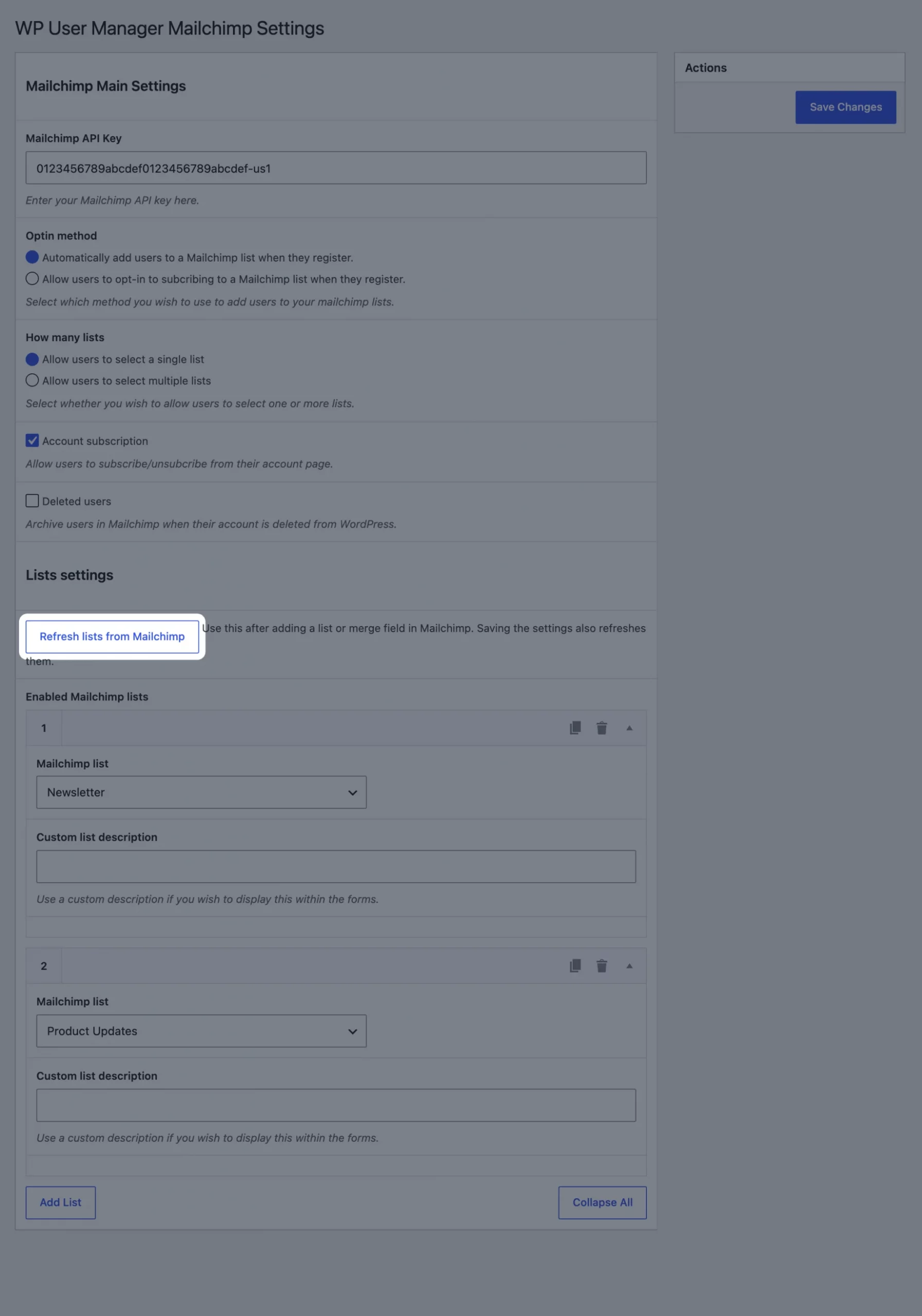
If you add an audience or merge field in Mailchimp later, click Refresh lists from Mailchimp to bring it in.
If something goes wrong
- “Invalid Mailchimp API key.” The key was copied incompletely or has been revoked. Copy it again, including the
-usending, or create a new key. - The Mailchimp list drop-down is empty. The key works but the Mailchimp account has no audiences, or the key belongs to a different Mailchimp account from the one with your audience. Check you’re logged in to the right account, create an audience if needed, then click Refresh lists from Mailchimp.
- It worked before and has stopped. Mailchimp API keys created on or after June 22, 2026 expire a year after they’re made. Create a new key and paste it in. If a key may have been exposed, revoke it in Profile > Extras > API keys and create a new one.
Next steps
Choose how members join your lists under Optin method: added automatically when they register, or by ticking a box on the registration form. To bring existing users into Mailchimp, see Sync all of your users, and to send profile fields to Mailchimp, see pass custom fields as merge fields.

Get Started with the Best WordPress Membership Plugin Today
Connect, Manage and Build your Membership Site