
A content restriction plugin decides who can see what on your WordPress site: logged-in members only, specific roles, paying customers, or nobody but you. WordPress itself can only make a post private or password protect it, so for anything more you need a plugin. We make one of the options below, WP User Manager, and we’ve tried to be fair about where each content restriction plugin fits best.
Install counts are from wordpress.org and prices from each plugin’s site, checked in October 2026.
What to look for in a content restriction plugin
The differences come down to four questions:
- What can it restrict? Whole posts and pages, parts of a page, menu items, categories, or the whole site.
- Who can it restrict to? Logged-in users, roles, specific users, or membership levels.
- What do visitors see instead? A message, a teaser of the content, or a redirect to another page.
- Does it handle payments? If you want to charge for access, either the plugin takes payments or it has to work with something that does.
The quick comparison
| Plugin | Best for | Free version | Takes payments |
|---|---|---|---|
| WP User Manager | Restriction plus registration, profiles and directories | Yes | Yes, Stripe |
| Members | Role-based restriction and editing roles | Yes | No |
| WP-Members | Simple members-only content with teasers | Yes | No |
| Restrict User Access | Access levels with detailed rules | Yes | Through WooCommerce or EDD |
| Kadence Memberships | Membership levels with Stripe | Yes | Yes, Stripe |
| Ultimate Member | Restriction on a community site | Yes | Paid plans |
| Paid Memberships Pro | Selling membership levels | Yes | Yes |
1. WP User Manager
WP User Manager handles registration, login, profiles and member directories, and restricts content to the members it signs up. The free plugin restricts parts of a page to logged-in users, logged-out visitors, roles or specific users with shortcodes, restricts any block from a WP User Manager – Restriction panel in the block editor, shows menu items by login status or role, and can make the whole site private.
The paid Content Restriction addon adds a box to every post, page, category and tag. You choose who can access it (logged in or out, roles, users, or customers who bought a Stripe or WooCommerce product), whether to show a message or redirect, and whether to hide it from menus, archives and RSS feeds. You can also restrict every post of a type at once.
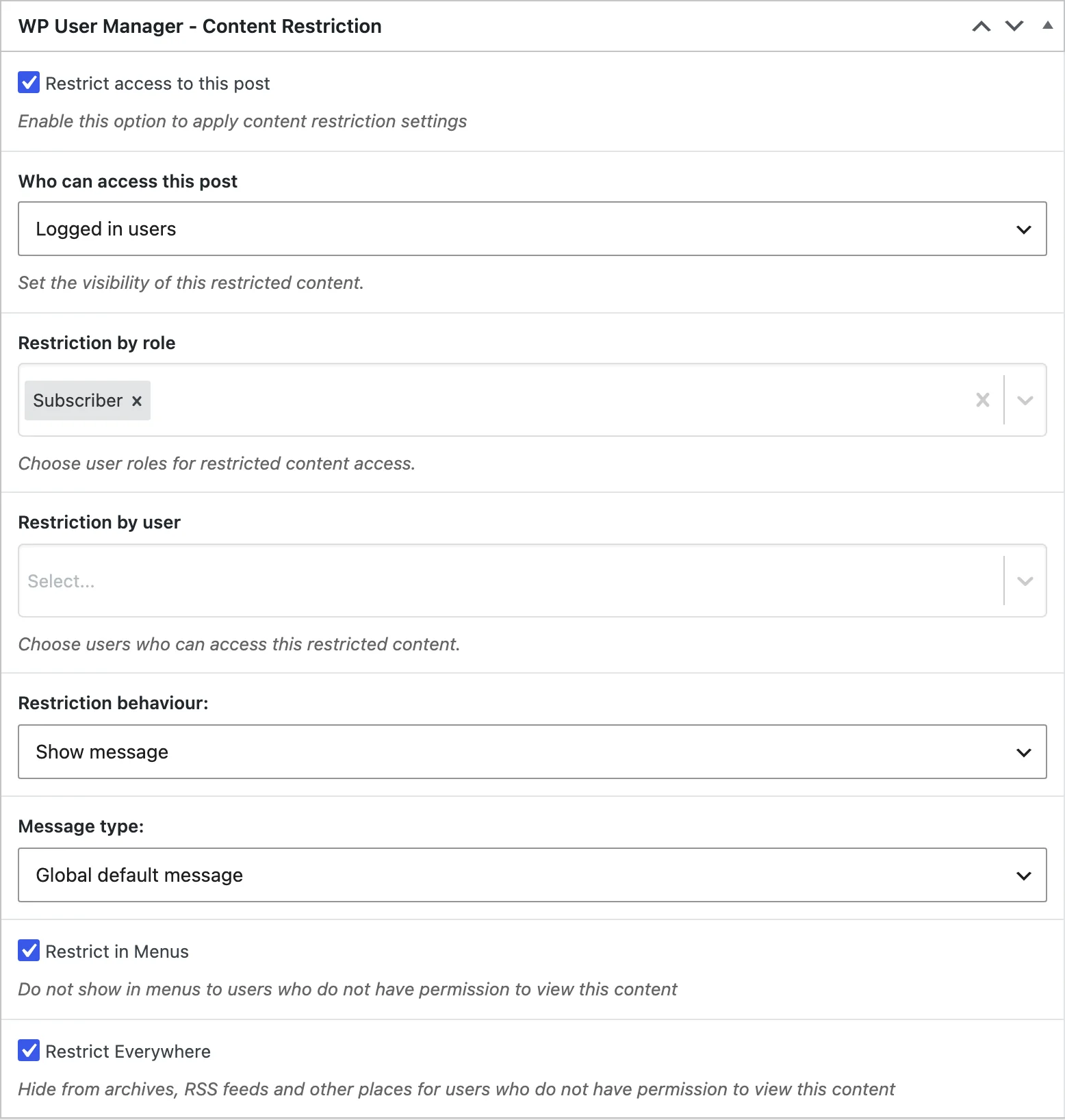
Pricing: the core plugin is free. The Content Restriction addon is $69 a year for one site, or included in every plan from $149 a year.
Choose it if your members also need to register, log in on the front end and have profiles. Our gated content guide shows the whole setup. Look elsewhere if you only need to hide content by role and already handle sign-ups another way: Members does that for free.
2. Members
Members is a role and capability editor from the MemberPress team, with about 300,000 active installs and one of the highest ratings in the category. Its Content Permissions box restricts a post’s content to chosen roles, and it adds shortcodes that control who sees content and an option to make the whole site, and its feed, private.
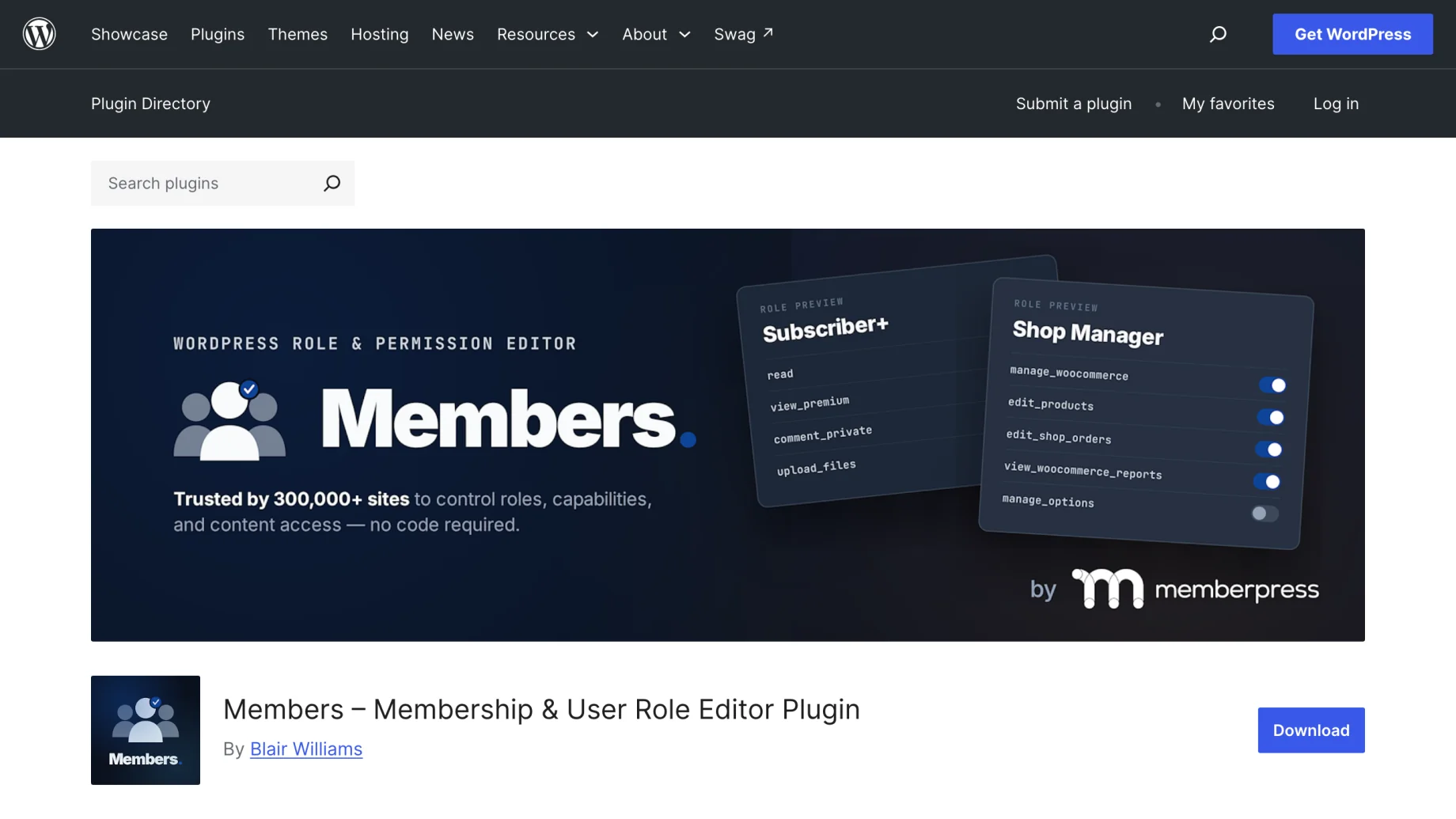
Choose it if your restrictions are all about roles and you want to create or fine-tune those roles too. It’s free. Look elsewhere if you need front-end registration, teasers or payments: it doesn’t do those.
3. WP-Members
WP-Members describes itself as the original WordPress membership plugin, and has about 50,000 active installs. It restricts or hides posts, pages and custom post types for logged-out visitors, limits menu items to logged-in users, and can show an automatic excerpt as a teaser. It also adds login and registration forms with custom fields, and lets you hold new registrations for approval.
Choose it if you want straightforward members-only content with teasers in one free plugin.
4. Restrict User Access
Restrict User Access works with access levels rather than roles. A level can be granted automatically on registration, by role, or when someone buys a product in WooCommerce or Easy Digital Downloads, and a user can hold several levels at once. Its rules are the most detailed here: you can protect posts by category, tag, author or page template, as well as archives and search results.
Choose it if you need fine-grained rules, or you sell access through WooCommerce or Easy Digital Downloads.
5. Kadence Memberships
Kadence Memberships is the plugin formerly called Restrict Content (and Restrict Content Pro). It’s built around membership levels: create free, trial and paid levels, and restrict posts, pages, media and custom post types to each one. The free version takes Stripe payments, and Pro add-ons cover more.
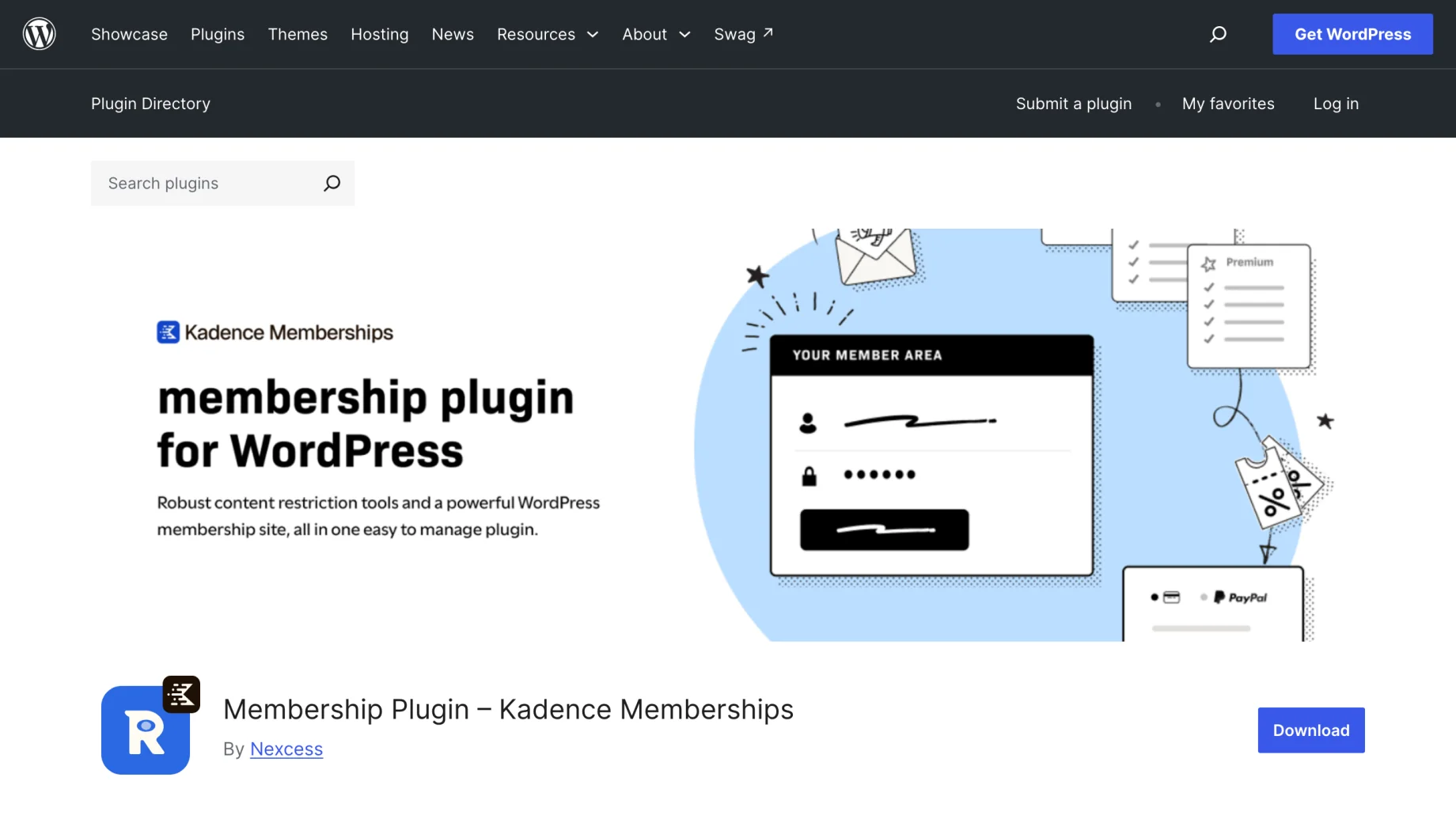
Choose it if you want membership levels with payments, especially on a site already built with Kadence.
6. Ultimate Member
Ultimate Member is a community plugin (profiles, registration, member directories) with about 200,000 active installs, and the free version includes per-post content restriction by login status and role. Payments come with its paid plans. We compare it with our own plugin in WP User Manager vs Ultimate Member.
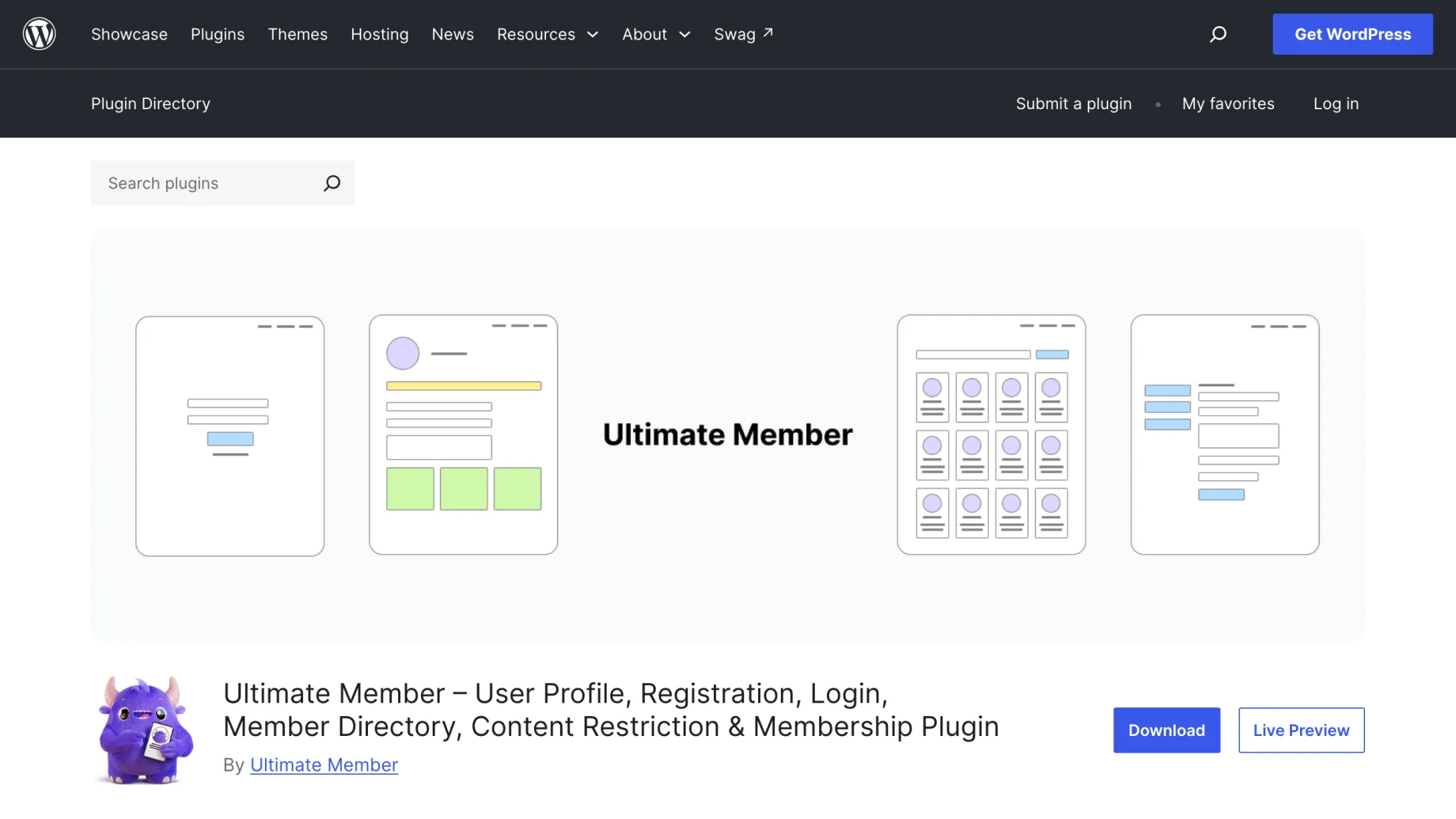
Choose it if you’re building a community and want restriction as part of it.
7. Paid Memberships Pro
Paid Memberships Pro is a membership plugin first: membership levels, recurring payments and restricted content for each level. It’s no longer on wordpress.org; the free version is downloaded from their site, with 25 free add-ons. The Standard plan is $499 a year for one site.
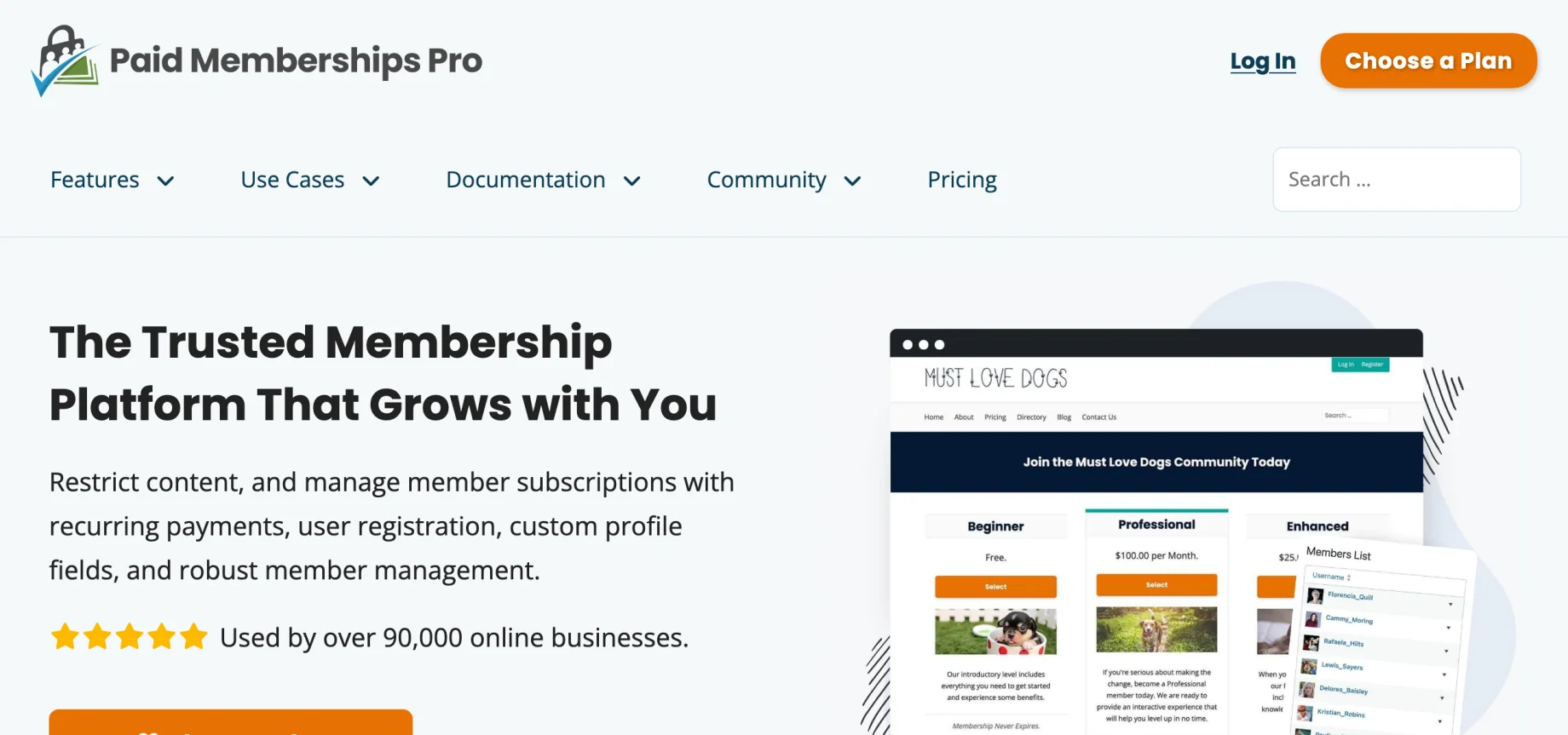
Choose it if selling memberships is the point of the site, and restriction is one part of that.
Which content restriction plugin should you use?
- Restrict content to members who sign up on your site: WP User Manager, or WP-Members if you don’t need profiles.
- Restrict by role, nothing else: Members.
- Detailed rules, or access sold through WooCommerce: Restrict User Access, or WP User Manager with the Content Restriction addon.
- Paid membership levels: Kadence Memberships or Paid Memberships Pro.
- A whole private site: WP User Manager or Members, both free. See how to make a WordPress site private.
Whichever you pick, keep the pages that bring visitors in public. Search engines see your site as a logged-out visitor, so anything behind a restriction can’t rank.
Try WP User Manager
The free plugin restricts parts of pages, blocks, menus and the whole site: download it from wordpress.org. When you need to restrict whole posts, categories or paid products, the Content Restriction addon is in every plan, with a 30-day money-back guarantee.