

To add reCAPTCHA to WordPress, you need two things: a site key and secret key from Google, and a plugin that puts the reCAPTCHA on your forms and checks the answer. This guide covers reCAPTCHA for WordPress login, registration and lost password forms built with WP User Manager: how to create keys now that Google has moved reCAPTCHA into Google Cloud, whether to pick v2 or v3, the one setting that stops bots going around your captcha, and hCaptcha if you’d rather not use Google.
What reCAPTCHA does (and v2 vs v3)
reCAPTCHA is Google’s service for telling people from bots. When someone submits a form, the reCAPTCHA on the page gives them a token, and your site sends that token to Google to ask whether the visitor is human. Bots that can’t get a valid token are turned away before they create an account or try a password.
There are two versions, and they feel very different to your members:
- v2 Checkbox is the “I’m not a robot” box. Most people just tick it; suspicious visitors get an image puzzle.
- v3 is invisible. Google scores every visitor from 0.0 (bot) to 1.0 (human) based on how they use the page, and your site decides what score is good enough. Nobody ticks anything.
v3 is kinder to real members, and it’s what Google now recommends. The cost is that you can’t see it working: a member Google scores too low just gets an error. v2 is more visible, but nobody is blocked without being given a puzzle to solve first.
What you need
- The free WP User Manager plugin, which gives you the front-end login, registration and password forms the reCAPTCHA protects.
- The Google reCAPTCHA addon. It’s a paid addon, also included in the Pro and Agency bundles.
- A Google account.
Before you add a captcha, know that WP User Manager’s registration forms already include a hidden honeypot field. People never see it; simple bots fill it in and are rejected. If your spam signups are low-effort bots, that may be all you need. reCAPTCHA is for when they get past it.
Step 1: Create your reCAPTCHA keys in Google Cloud
Google has moved reCAPTCHA into Google Cloud, so new keys are created in the Google Cloud console, not the old reCAPTCHA admin page most guides still show. Keys made in the old console still work: Google has moved them into a Cloud project for you.
- Sign in to the Google Cloud console and create a project for your site, or pick an existing one.
- Go to the reCAPTCHA page (Google now lists it under Fraud Defense), open the Keys tab and click Create key.
- Give the key a Display name you’ll recognize, such as your site’s name, and set Application type to Web.
- Under Domain list, click Add a domain and enter your domain without
https://, for exampleexample.com. Add a staging or local domain too if you test there. - Choose the key type:
- For v3, leave it as a score-based key (the default) and click Create key.
- For v2 Checkbox, click Next Step, turn on Will you use challenges?, choose a Challenge security level and click Create key.
- Open the new key. Its Key ID is your site key. On the Integration tab, click Use Legacy Key to see the secret key. Plugins like ours check the answer with Google’s original verification method, which needs this secret key.
Keep both keys to hand for step 3. Google’s own guide to creating a reCAPTCHA key for a website has more detail on each option.
What it costs
reCAPTCHA is free for up to 10,000 checks a month across your Google Cloud organization. Each login, registration or password reset that passes a reCAPTCHA token to Google counts as one check (bots that send no token are rejected before Google is asked). Most membership sites are far below that. Above 10,000 you need billing turned on in Google Cloud. Without it, Google stops checking and passes every request, so your forms stay open but the captcha quietly stops doing anything.
Step 2: Install the reCAPTCHA addon
Download the addon from your account on wpusermanager.com, then in WordPress go to Plugins > Add New Plugin > Upload Plugin, choose the zip and activate it. WP User Manager must be active first.
Step 3: Add your keys to WP User Manager
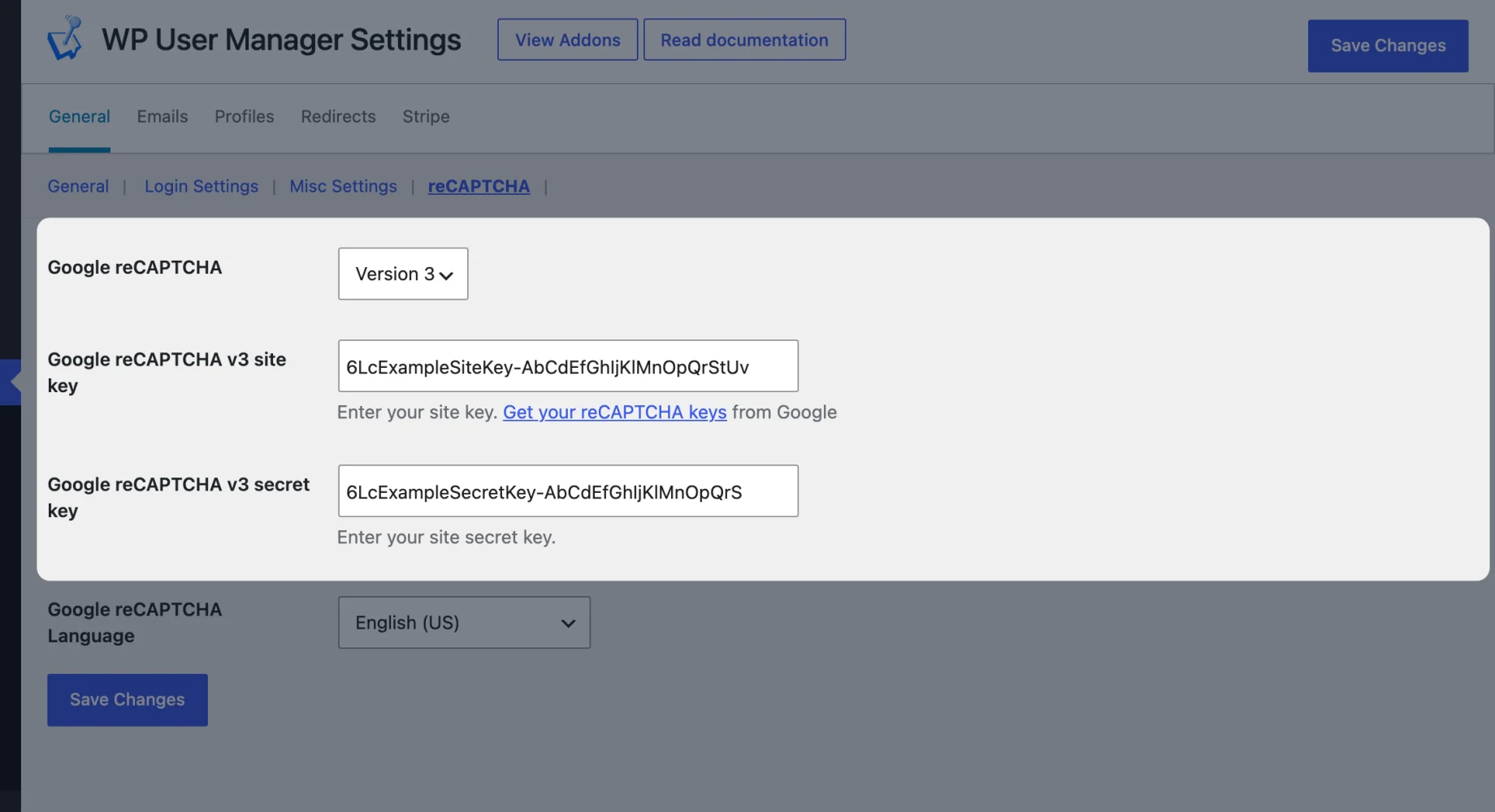
Go to Users > Settings > General > reCAPTCHA:

Get Started with the Best WordPress Membership Plugin Today
Connect, Manage and Build your Membership Site
- Set Google reCAPTCHA to Version 2 or Version 3, to match the key type you created.
- Paste your keys into the site key and secret key fields. Version 2 and Version 3 keys have separate fields, so you can keep both saved and switch between them.
- For Version 2, set reCAPTCHA Type to Checkbox. (There’s also an Invisible option, which needs an invisible-type key.)
- Pick your Google reCAPTCHA Language and click Save Changes.
Our help article on configuring reCAPTCHA covers the same settings.
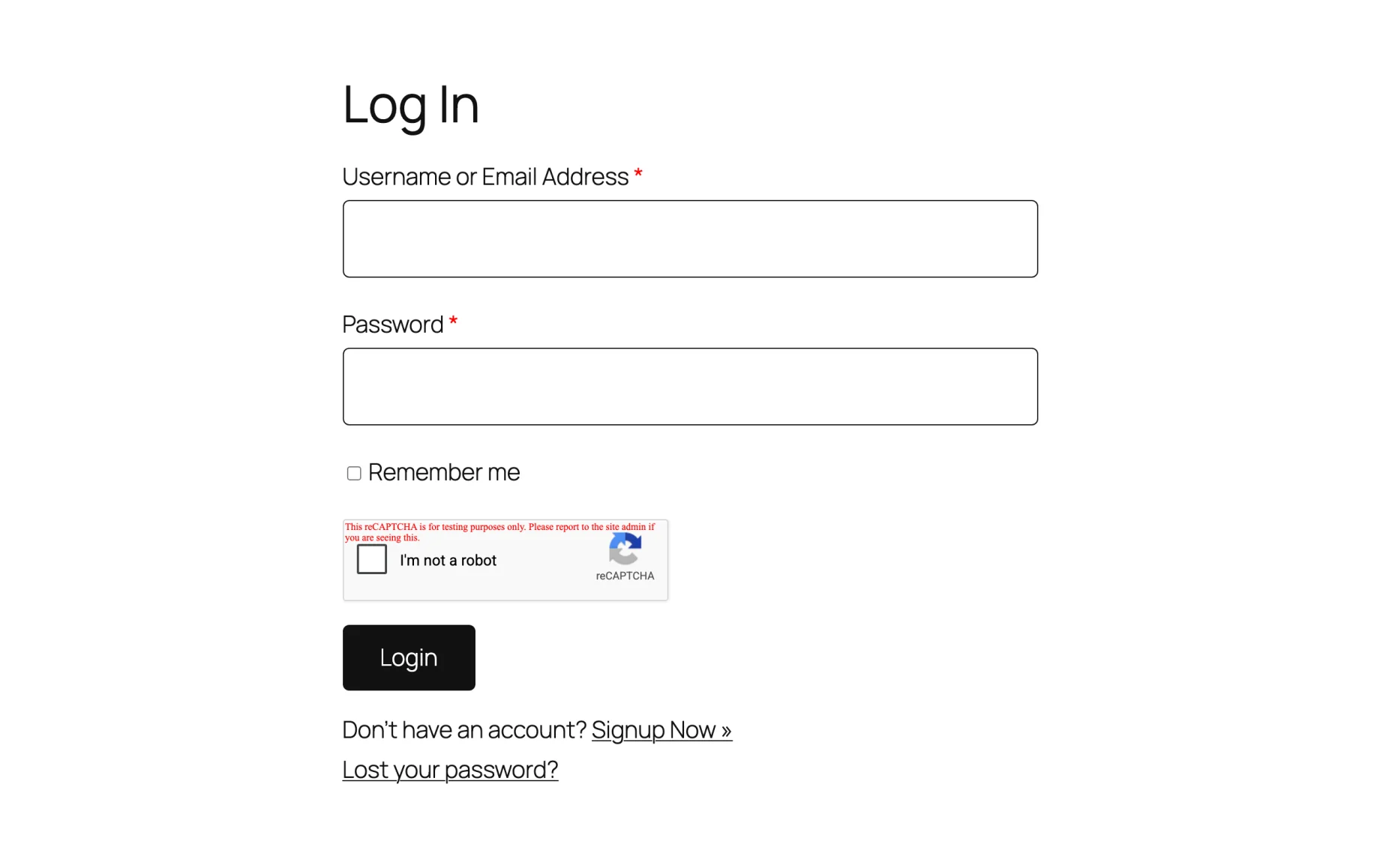
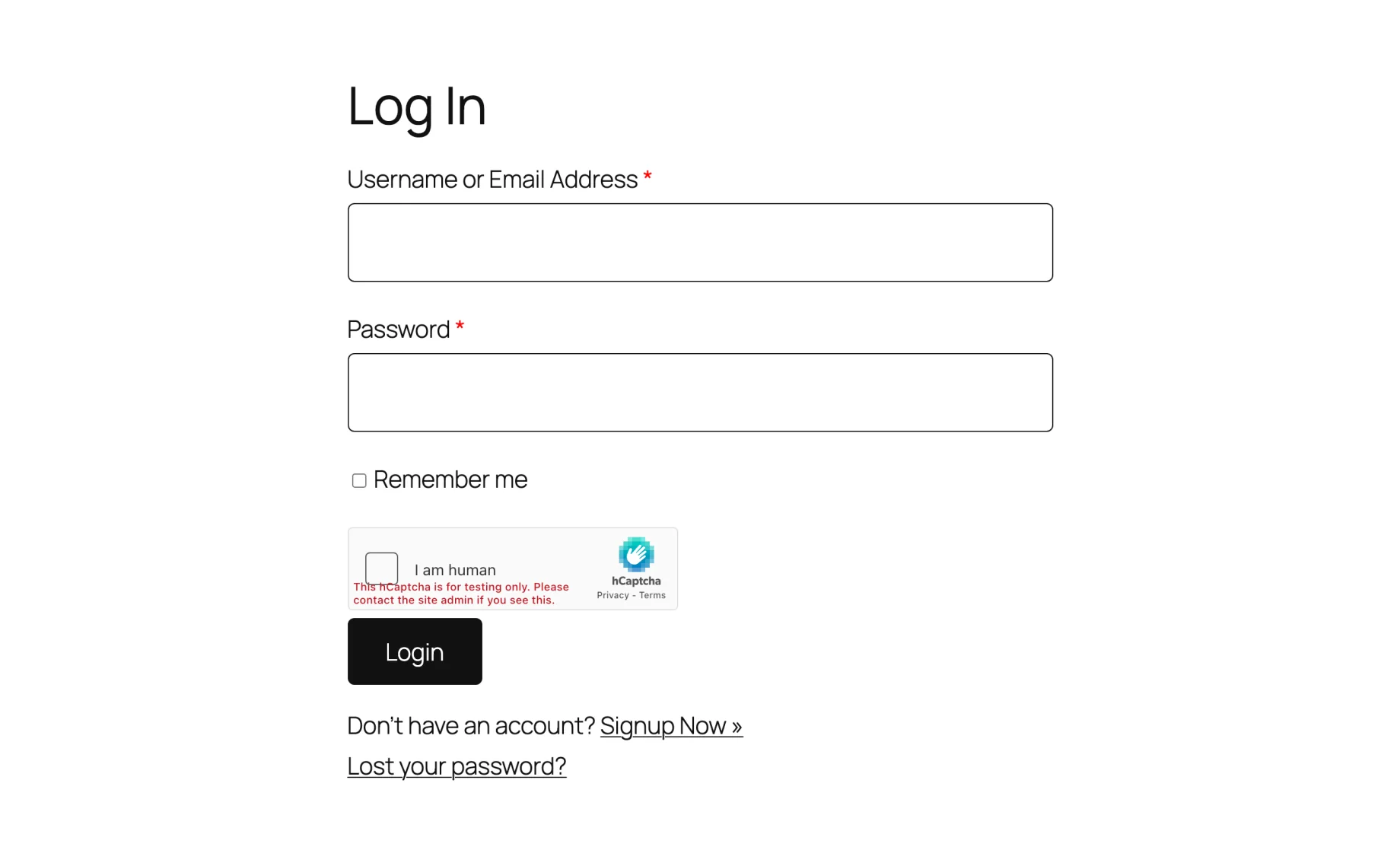
There’s no per-form switch: as soon as the keys are saved, the reCAPTCHA appears on the login, registration and lost password forms, and on the two-factor login form if you use the Security addon. Log out and look at your login page.
The registration form gets the same box, which is where it does most of its work.
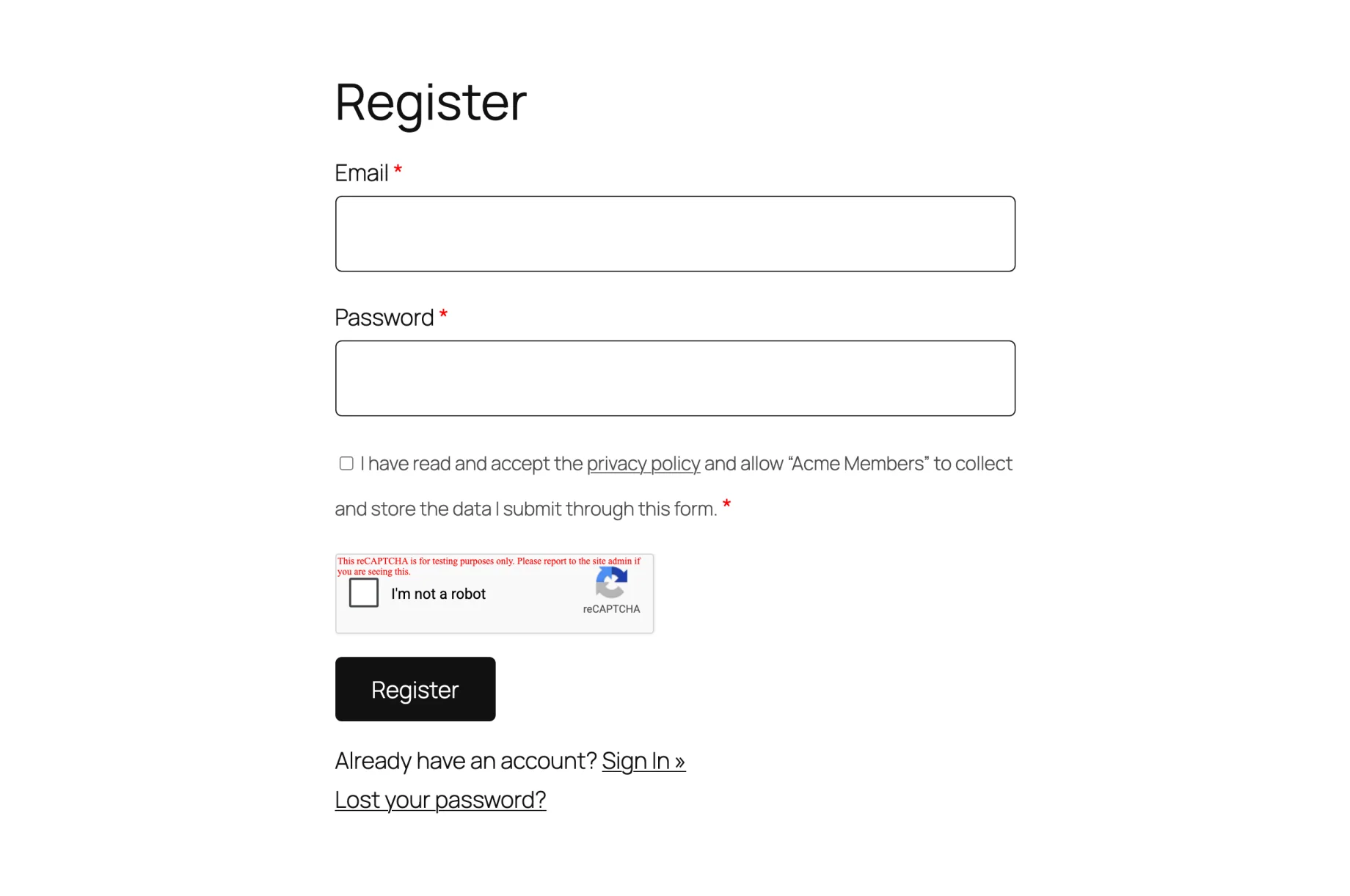
The red “testing purposes only” line appears because these screenshots use Google’s test keys. Your own keys won’t show it.
Step 4: Lock wp-login.php so bots can’t go around it
This is the step most reCAPTCHA guides miss. The reCAPTCHA protects WP User Manager’s forms, but WordPress still has its own login and registration screen at wp-login.php, and bots know where it is. If it’s open, they register there and never see your captcha. The addon warns you about this in the dashboard until it’s fixed.
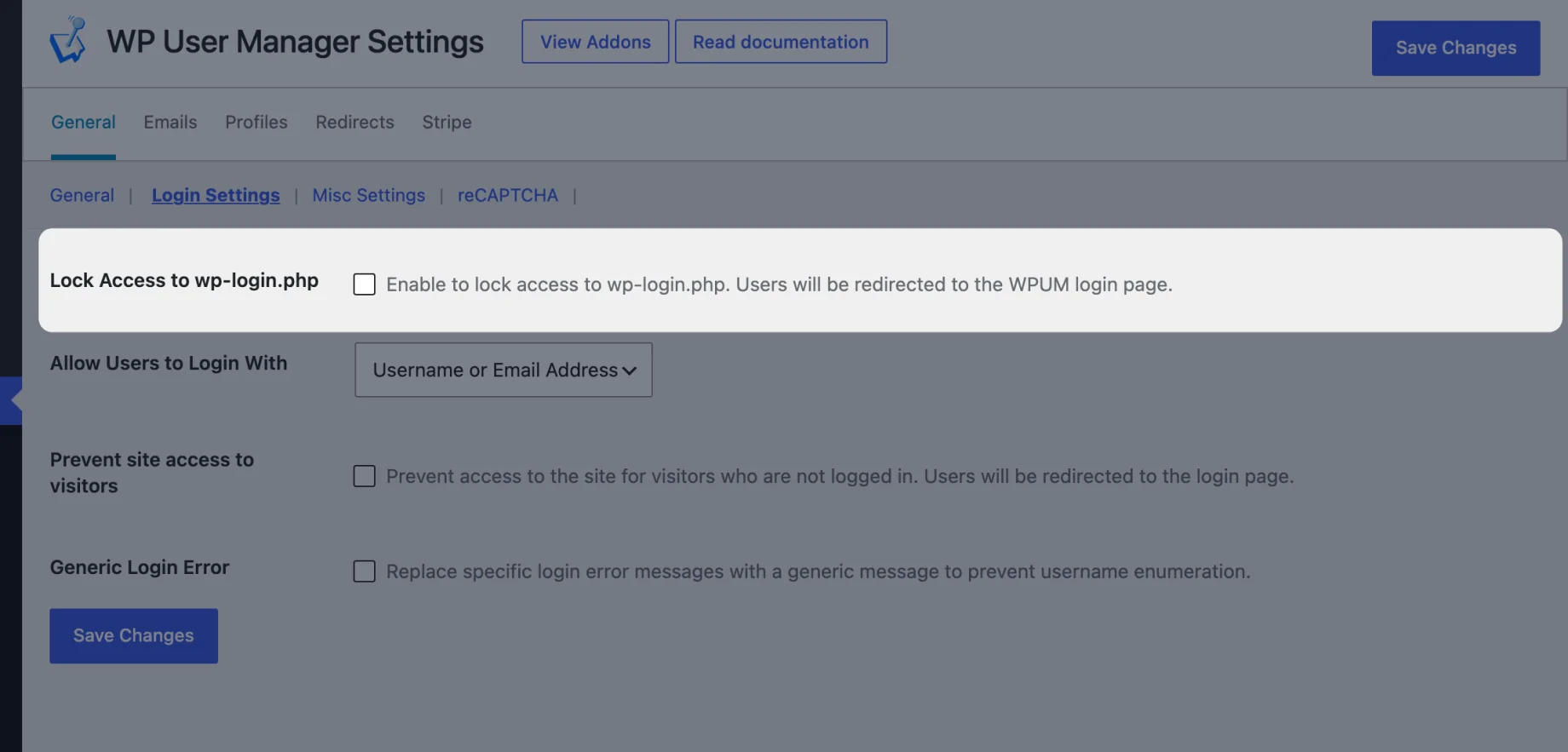
Go to Users > Settings > General > Login Settings, turn on Lock Access to wp-login.php and save. Visits to wp-login.php now go to your WP User Manager login page, which has the reCAPTCHA. Our help article on redirecting the WordPress login page has more on this setting.
If you haven’t styled that login page yet, our guide to creating a custom login page in WordPress walks through it.
Fine-tuning reCAPTCHA v3
The addon accepts a v3 score of 0.5 or higher, Google’s default. If real members tell you they’re seeing “Recaptcha validation failed”, lower the threshold with the wpum_recaptcha_score_threshold filter. Our help article on changing the required score for reCAPTCHA v3 has the snippet. If it keeps happening, switch to Version 2, which gives a doubtful visitor a puzzle instead of an error.
Developers can also take the reCAPTCHA off a single form. For example, add_filter( 'wpum_login_recaptcha_enabled', '__return_false' ); removes it from the login form and keeps it on registration.
Prefer not to use Google? Use hCaptcha
If you’d rather not send your visitors to Google, or don’t want a Google Cloud project, the hCaptcha addon works the same way on the same forms. hCaptcha has a free plan and is built around privacy. It’s also a paid addon, included in the Plus, Pro and Agency bundles.
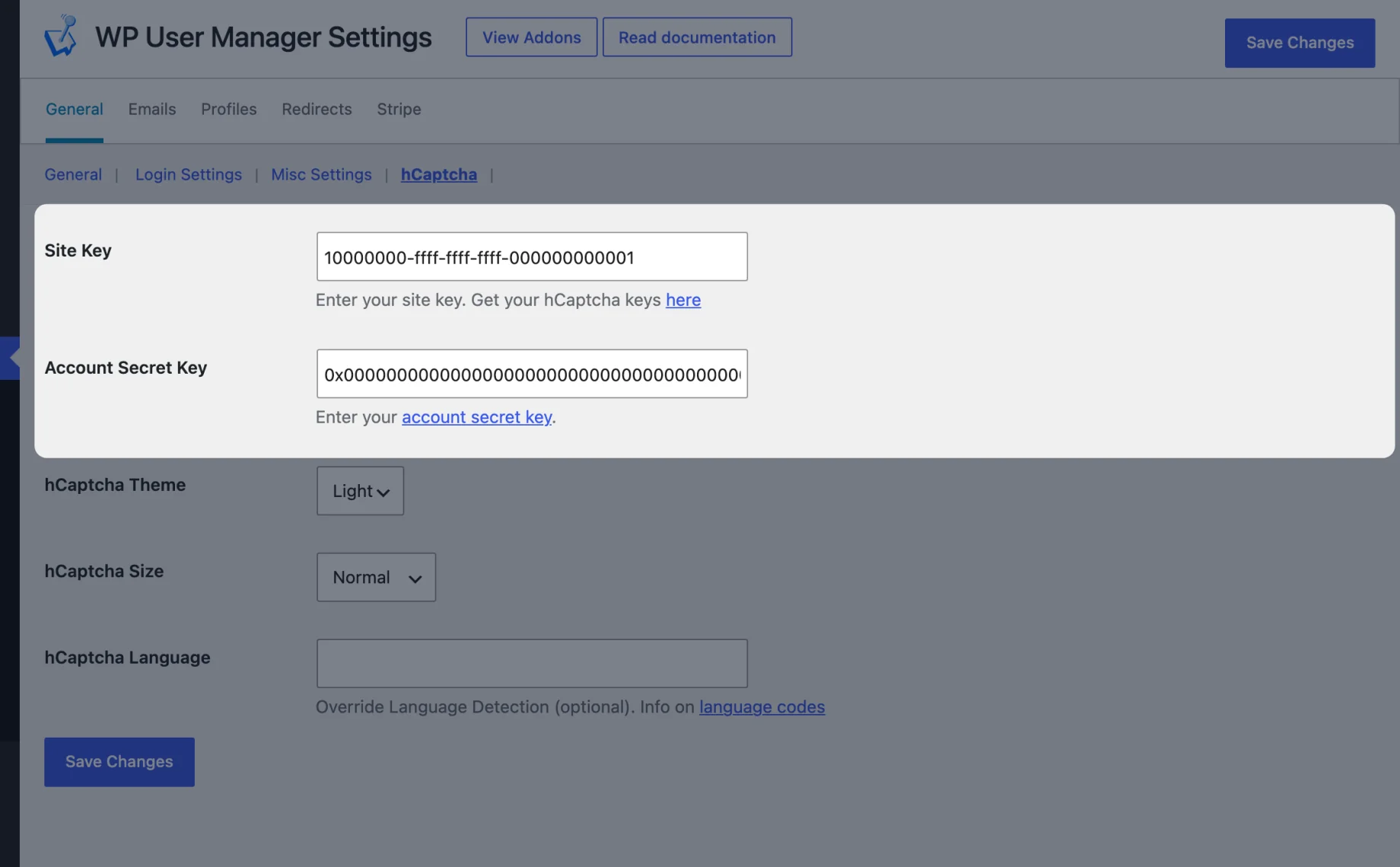
Sign up at hCaptcha, add your site, then copy the site’s Site Key and your Account Secret Key from your account settings. Our help article on generating hCaptcha API keys shows where to find both. Paste them in Users > Settings > General > hCaptcha, where you can also pick a light or dark theme and a normal or compact size.
Use one or the other, not both on the same forms. Step 4 applies either way: lock wp-login.php.
When a captcha isn’t enough
A captcha stops automated signups. It doesn’t stop a person creating a fake account by hand. If those are getting through, make new members confirm their email address or wait for your approval with the User Verification addon. Our guide to verifying user signups in WordPress covers both.
Add reCAPTCHA to your WordPress forms
Start with the free WP User Manager plugin for your login and registration pages, lock wp-login.php, then add the reCAPTCHA addon or the hCaptcha addon when the bots find you.