
This needs Groups 1.3.0 or later.
You can invite people to a group instead of adding them straight away. Each person gets an email with a link, and they become a member when they follow it. Until then they’re listed as Invited: they aren’t counted as members, and they can’t see a hidden group.
There are three ways to invite someone.
From the group editor (hidden groups)
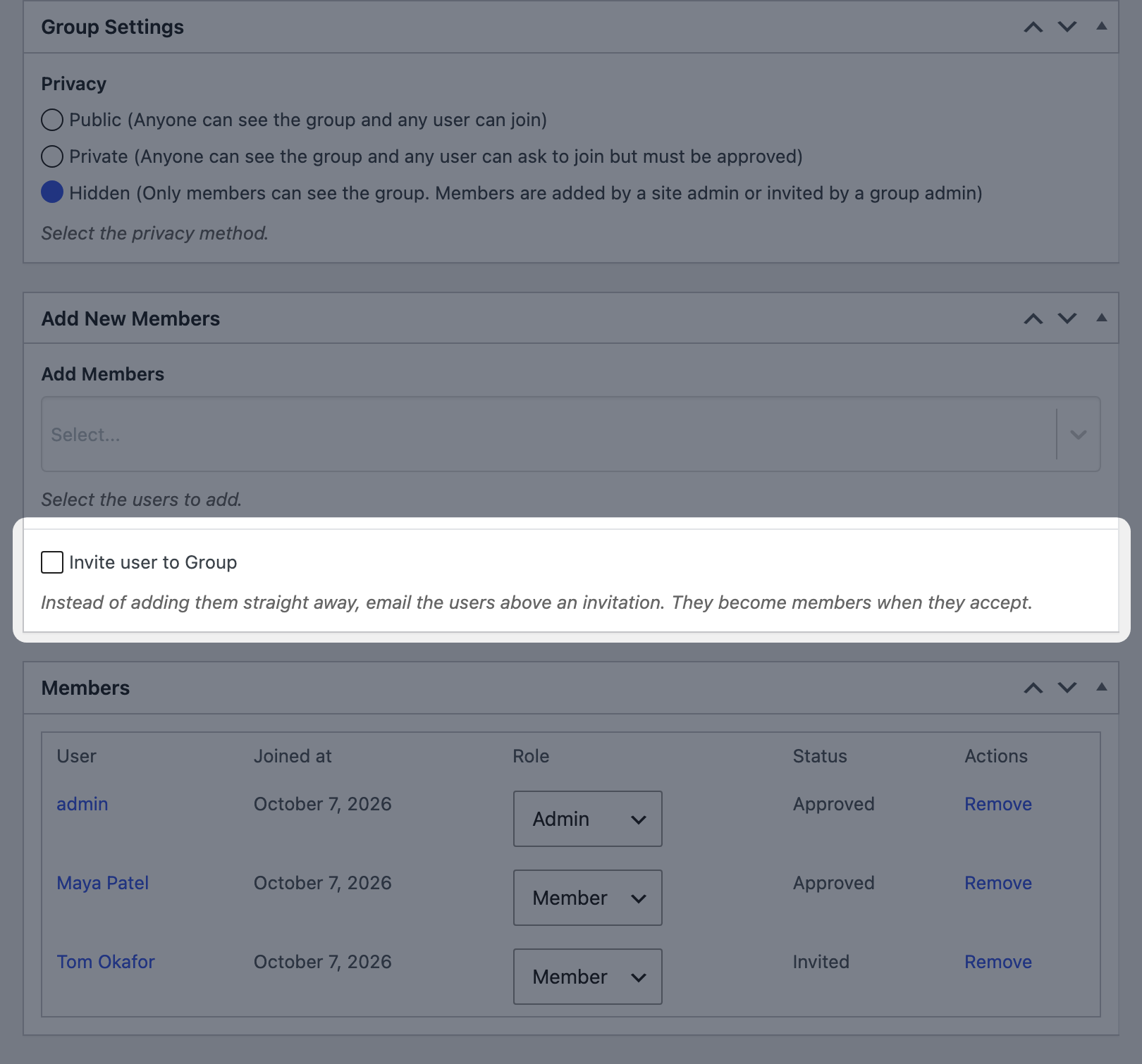
- Go to User Groups and edit the group. Its privacy must be Hidden.
- In Add New Members, pick the users to invite.
- Tick Invite user to Group below the list.
- Click Update.
The users you picked are emailed an invitation instead of being added. The box only shows while the privacy is Hidden, and it only applies to that save: next time you add members they’re added straight away unless you tick it again.
From the Edit User screen (any group)
- Go to Users and edit the user.
- In the Groups section, choose a group under Invite to group.
- Click Update User.
The dropdown lists every group the user isn’t already in, hidden ones included. The same section shows the groups they’re a member of. You need to be able to promote users (administrators can) to see it.

From the group page (group admins of hidden groups)
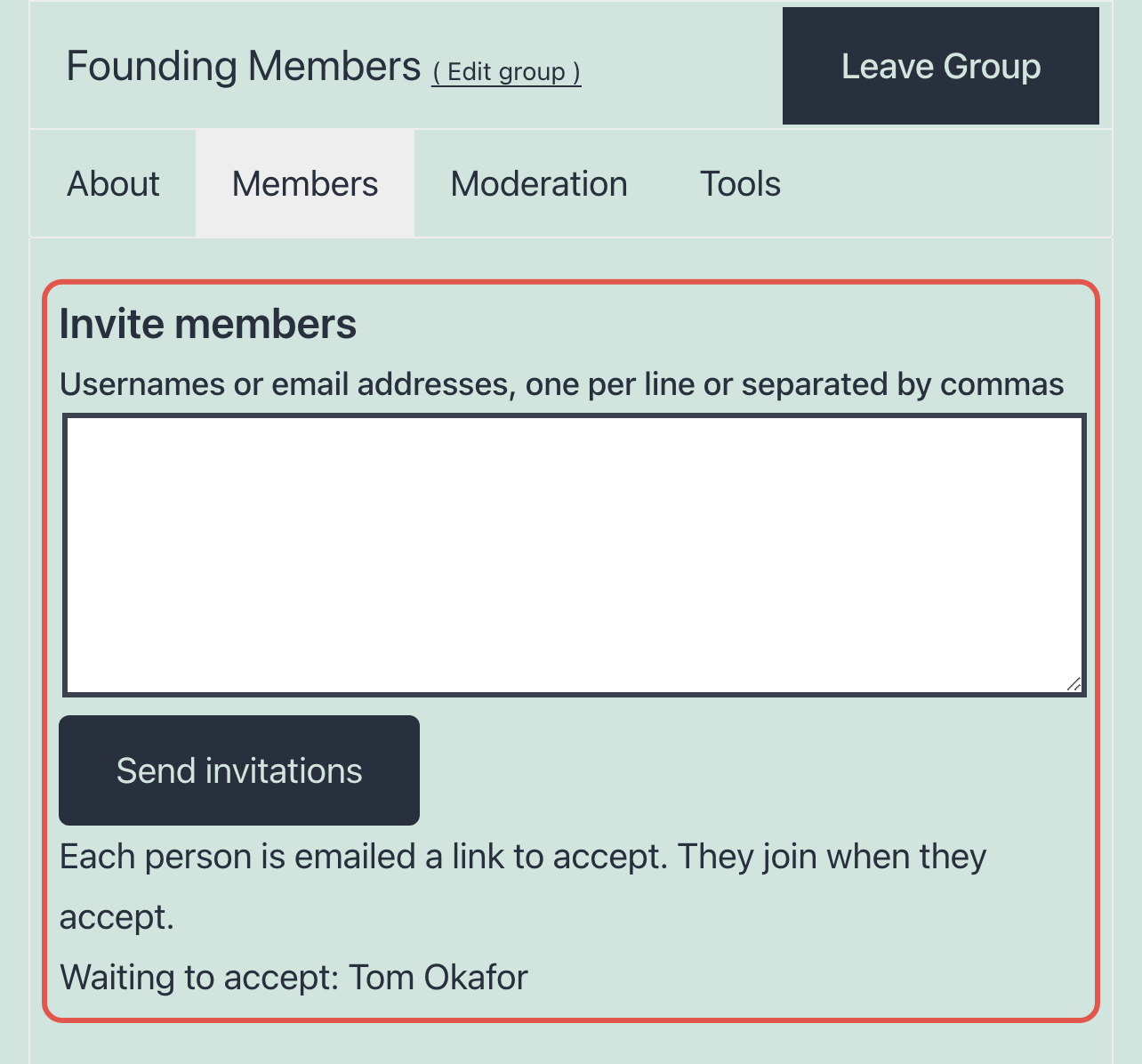
Group admins of a hidden group see an Invite members box at the top of the group’s Members tab.
- Enter usernames or email addresses, one per line or separated by commas.
- Click Send invitations.
The page then says how many invitations were sent, and how many couldn’t be: either there’s no account with that username or email, or the person is already in the group. Up to 20 people can be invited at a time. Below the box, Waiting to accept lists everyone who hasn’t accepted yet.
Only people who already have an account on your site can be invited.
Accepting an invitation
The email has a link to accept. When the invited person follows it:
- If they’re logged in, they join the group and land on the group page.
- If they’re logged out, they’re sent to the login page first, then join.
- If someone else is logged in, they see an error: the link only works for the person who was invited.
Links expire after a week. To send a new one, invite the person again: the new link replaces the old one.
An invited user can also accept by clicking Join on a public or private group’s page, where they’ll see “You have been invited to join this group. Click Join to accept.”
The invitation email
Edit the email under Users > Emails > Group invited. It must include the {group_join_url} tag, which is the accept link. Other useful tags are {group} and {username}.
For developers
wpumgp_invite_user_to_group( $group_id, $user_id )invites a user and sends the email.wpumgp_invitation_key_lifetimefilters how long links last, in seconds (default one week).wpumgp_max_invitations_per_submitfilters how many people a group admin can invite at once (default 20).wpumgp_can_invite_from_group_pagefilters who sees the Invite members box.wpumgp_user_after_invitationandwpumgp_after_invitation_acceptedfire after an invitation is sent and accepted.
Related: Moderating group members, Managing group members.

Get Started with the Best WordPress Membership Plugin Today
Connect, Manage and Build your Membership Site