
Site admins manage members from the dashboard, and group admins from the group page.
In the dashboard: the group editor
Go to User Groups and edit the group.
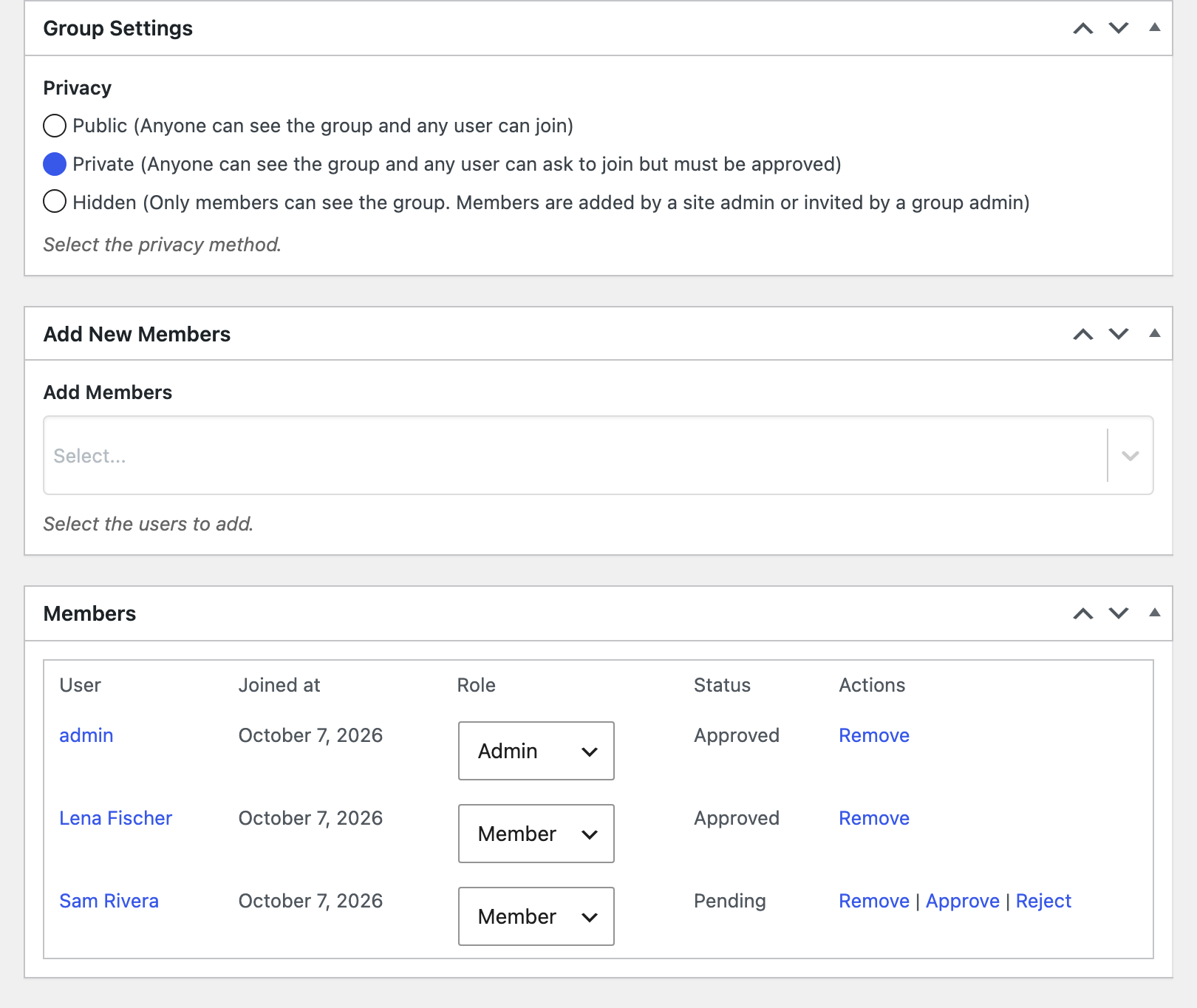
- Add members: pick users in Add Members (in the Add New Members box) and click Update. They’re added as approved members straight away. On a hidden group you can invite them instead; see Inviting members to a group.
- Change a member’s role: the Members box lists everyone in the group with the date they joined, their role and status. Change the Role dropdown (Member, Moderator or Admin) and click Update.
- Remove a member: click Remove in their row.
- Approve or reject a pending member of a private group: click Approve or Reject in their row.
In the dashboard: the Users screen
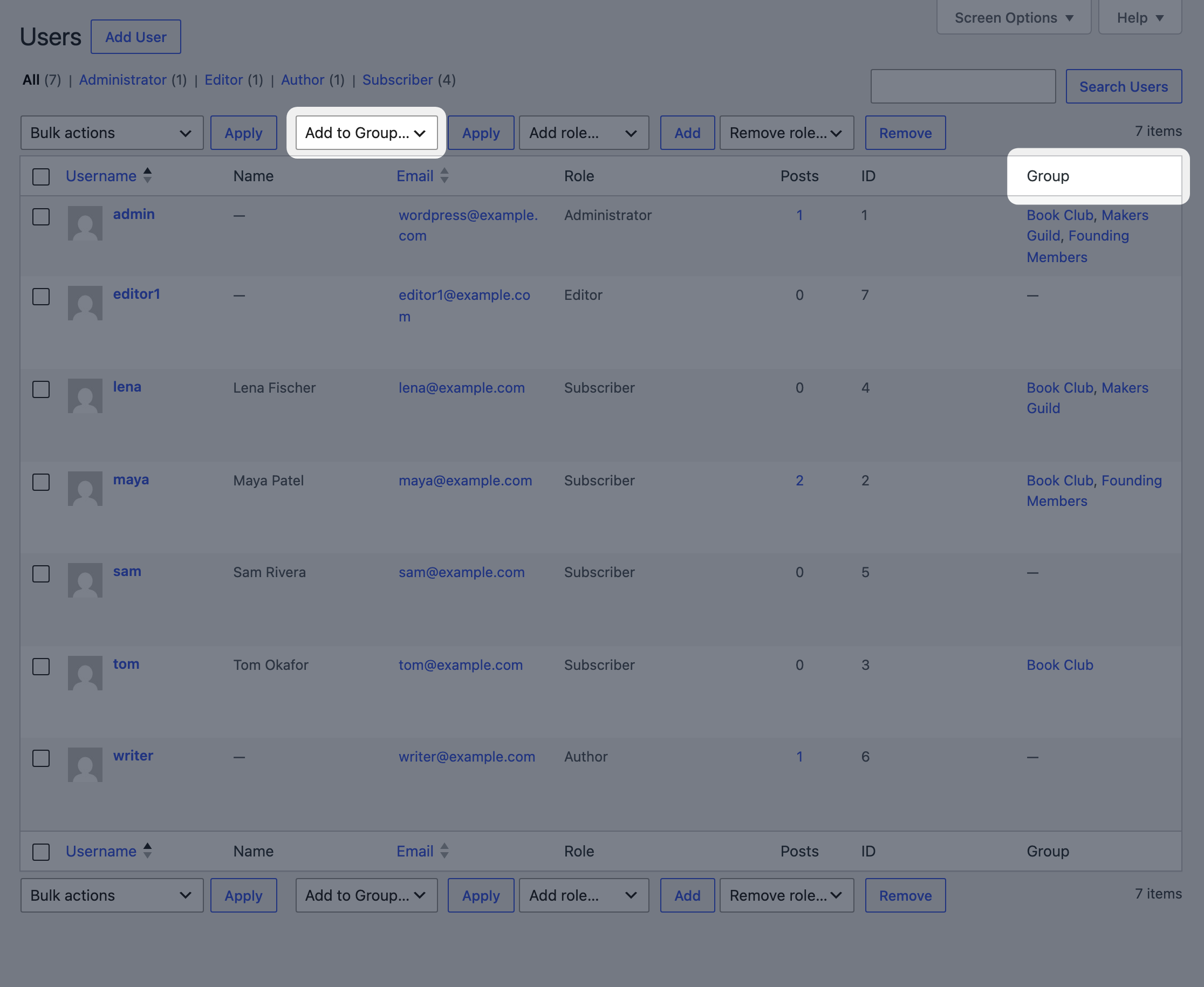
Under Users, a Group column shows the groups each user is in (up to five, then “& N more”).
To add several users to a group at once:
- Tick the users.
- Choose the group in the Add to Group… dropdown above or below the table.
- Click Apply.
They’re added as approved members, and anyone already in the group is skipped. This needs permission to promote users (administrators have it). The dropdown lists public and private groups.
On the group page
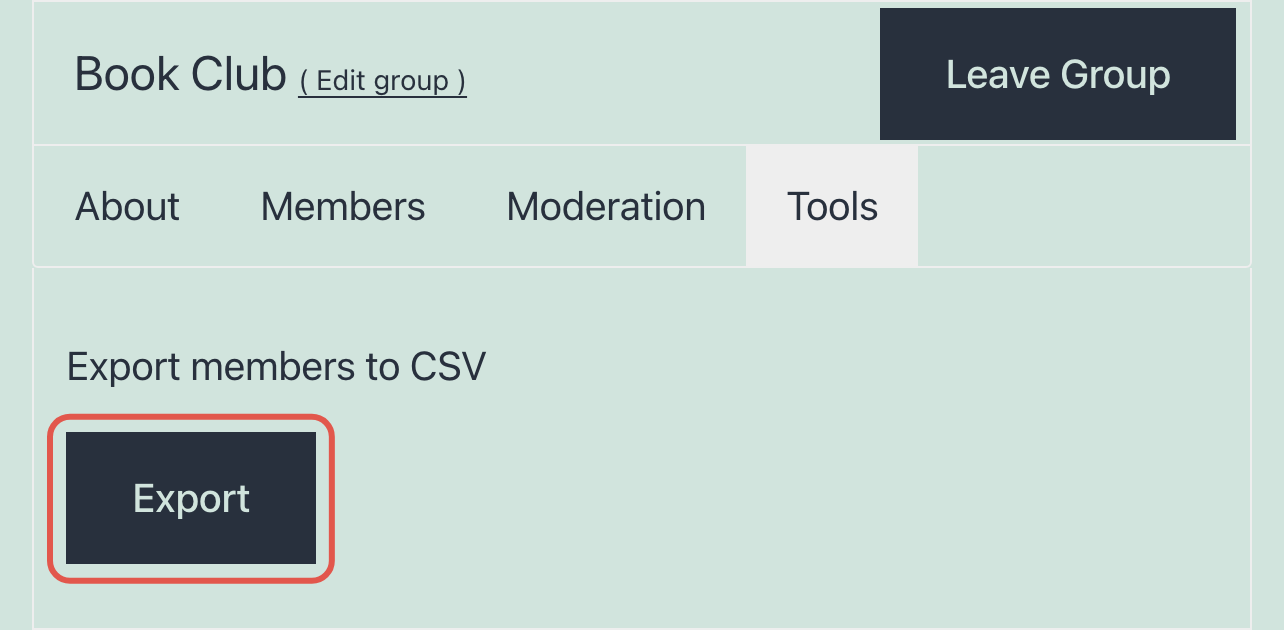
Group pages have tabs. Everyone sees About and Members. Moderators and admins also see Moderation, and admins see Tools.
- Remove a member: group admins see a Remove button next to each member on the Members tab.
- Export the members: on the Tools tab, Export downloads a CSV of the group’s members with their email address, first name and last name.
The Members tab respects each member’s profile privacy settings: members whose profiles the visitor isn’t allowed to see aren’t listed.
When a user is deleted
Deleting a user removes them from all their groups.
For developers
wpum_groups_add_user_to_group_capfilters the capability for bulk adding (defaultpromote_users).wpum_groups_total_group_displayedfilters how many groups the Group column shows (default 5).wpum_prepare_csv_header,wpum_prepare_member_data,wpum_group_prepare_csv_membersandwpum_group_csv_filenamecustomize the export.
Related: Moderating group members, Editing a group.

Get Started with the Best WordPress Membership Plugin Today
Connect, Manage and Build your Membership Site