

A WordPress member directory is a searchable page that lists the people on your site, each linking to their profile. WordPress doesn’t include one, but the free WP User Manager plugin does: you create a directory, choose who’s in it, and add it to a page. This guide takes about 10 minutes, and nothing in it needs a paid addon unless we say so.
What you can build with a WordPress member directory
One plugin covers several kinds of directory, because each one is built from the user roles you choose:
- A members directory for a club, association or alumni network.
- A staff directory for a company intranet, showing only employee accounts.
- A professional directory of coaches, consultants or experts, each with a public profile.
- A community directory, so members of a private site can find each other.
You can have as many directories as you like, so a site can list board members on one page and all members on another.
Step 1: Install WP User Manager
Install WP User Manager from Plugins > Add New and activate it. It creates the pages you’ll need, including Register, Account and Profile. Every user then gets a public profile, which is where each directory entry links to.
If you don’t have members yet, add a registration form so people can sign themselves up: see how to create a custom WordPress registration form.
Step 2: Create the directory
Go to Users > Directories and click Add new directory. Give it a title such as “Members”. Visitors don’t see this title, so it can be anything that helps you tell directories apart.
Step 3: Choose who’s listed
The General settings box decides who appears:
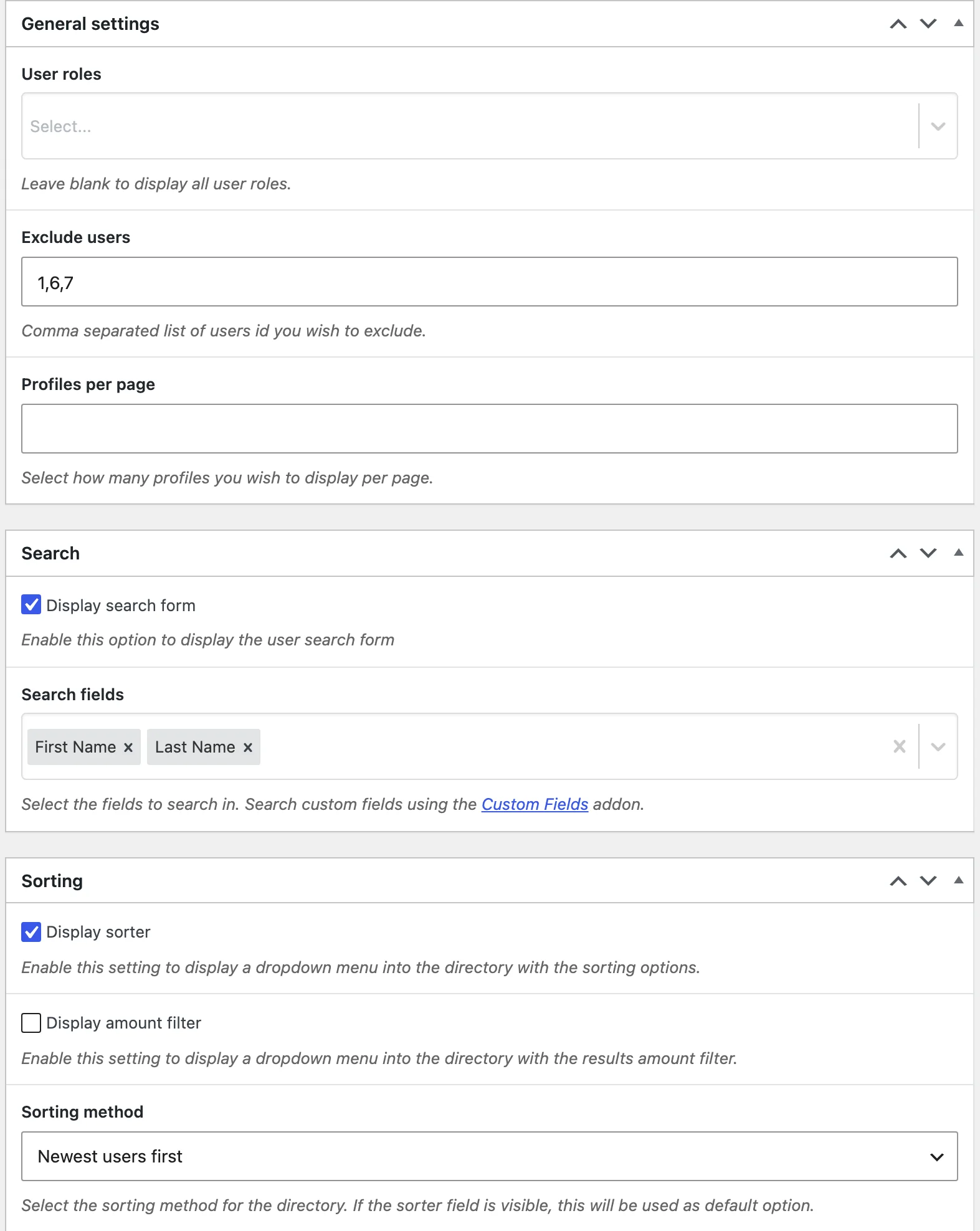
- User roles: pick the roles to include. Leave it blank to list every role. For a staff or board directory, give those people their own role first (see WordPress user roles).
- Exclude users: a comma-separated list of user IDs to leave out. Add your admin account here, so it isn’t listed with your members. Our help article explains how to find a user ID.
- Profiles per page: how many people to show on each page.
Step 4: Add search and sorting
A directory of more than a page or two needs a way to find people.

Get Started with the Best WordPress Membership Plugin Today
Connect, Manage and Build your Membership Site
In the Search box, tick Display search form and choose your Search fields. The built-in fields include First Name, Last Name and Description. To search your own fields, such as job title or city, you need the Custom Fields addon (paid).
In the Sorting box:
- Display sorter adds a “Sort by” menu.
- Display amount filter lets visitors choose how many results to see.
- Sorting method sets the default order: Newest users first, Oldest users first, First name or Last Name. For a people directory, name order is usually the most useful.
The Directory template box sets the Template and User Template. The defaults suit most sites, and developers can customize the directory template from their theme. With the Custom Fields addon, a User Fields box lets you show your own fields on each entry.
Click Publish when you’re done. Our help article on creating a user directory covers each setting in more detail.
Step 5: Add the directory to a page
Back in Users > Directories, the Shortcode column shows the shortcode for your directory:
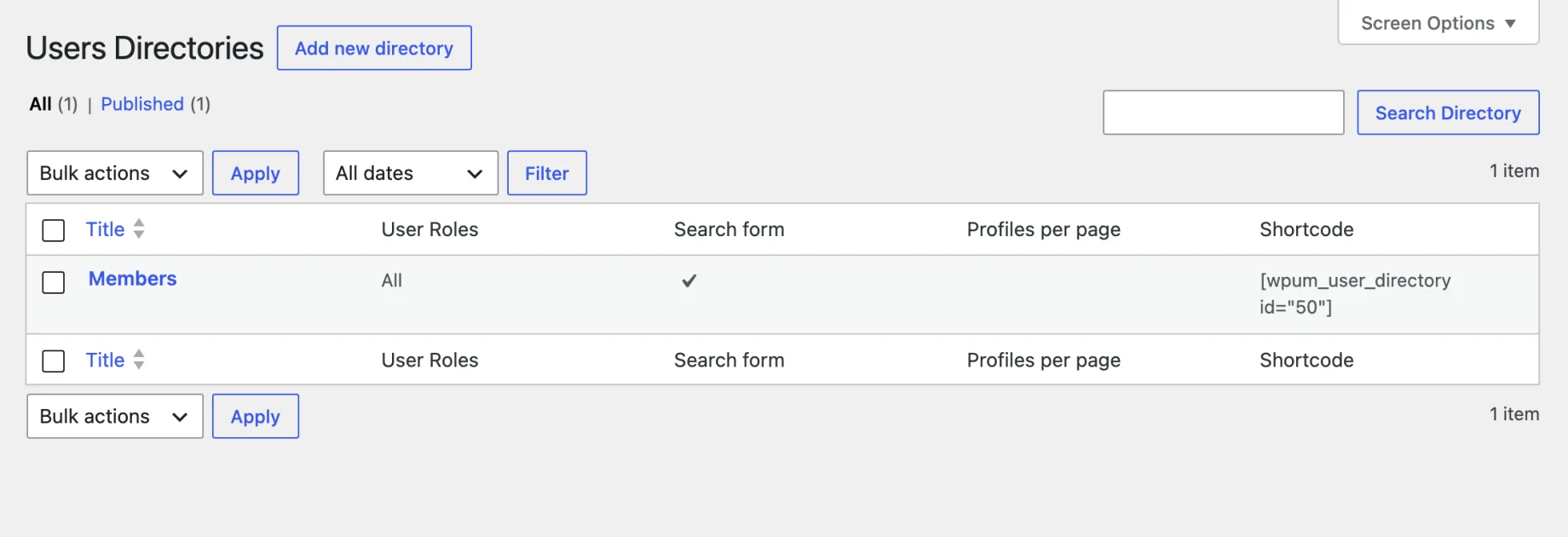
Create a page called “Members” (or use an existing one) and paste it in:
[wpum_user_directory id="50"]
Use your own ID in place of 50. In the block editor you can add the User Directory block instead. The full list of options is in the shortcode reference.
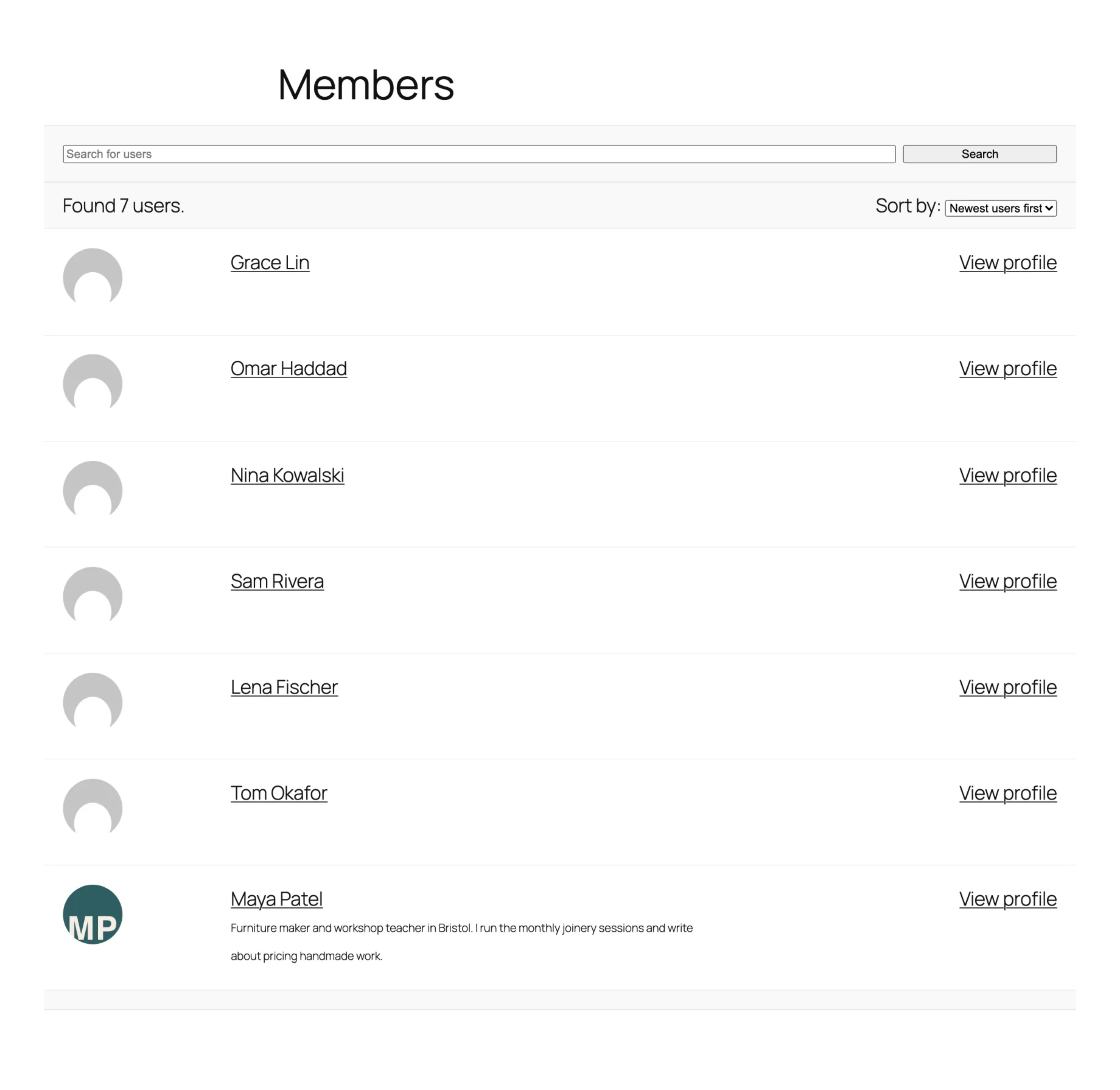
Publish the page and open it. Each entry shows the member’s avatar, name and description, with a link to their profile. Add the page to your menu so members can find it.
Step 6: Decide who can see the directory
A public directory is fine for a list of coaches who want to be found. It’s often wrong for a club, where members expect their details to stay among members. You have three levels of control, all free.
Members only. Wrap the shortcode so only logged-in users see the directory. Everyone else gets a message with links to log in or register:
[wpum_restrict_logged_in]
[wpum_user_directory id="50"]
[/wpum_restrict_logged_in]
To limit it further, use [wpum_restrict_to_user_roles roles="member"]. The Content Restriction addon (paid) does the same for the whole page, without a shortcode. Our guide to creating a members only area shows how this fits with the rest of a members area.
Profiles. The directory and the profiles behind it are separate, so restrict both. Under Users > Settings > Profiles > Permissions, untick Allow Guests to View Profiles to keep profiles away from logged-out visitors.
Each member’s own choice. Tick Allow Members to set their profile privacy in the same place. Members then get a Privacy tab on their account page where they can override your site-wide settings.
If you take personal data seriously, and for a club you should, tell members what the directory shows before they join.
Keep your directory useful
A directory is only as good as what members put in it:
- Ask for the details at sign-up. Add fields such as bio and location to the registration form. The Custom Fields addon adds your own.
- Let members upload a photo. A list of real faces looks far more alive than grey placeholders.
- Give them a reason to fill it in. See how to create a custom user profile page for what makes a profile worth completing.
Next steps
Your directory is ready as soon as the page is published. From here, many sites add groups, or a wider community, or charge for membership: our guide to building a membership website covers payment at registration. See the user directories feature page for more.
Directories are in the free WP User Manager plugin on WordPress.org, so you can have one running on your site today.